Office 2016 – 2021
Professional Plus
Complete installation and activation guide for Microsoft Office 2016 / 2019 / 2021 Professional Plus.

Please download the version you need:
Download Office 2021 Professional Plus
Tip:
• Choose only ONE version to install
• Windows 10 / Windows 11 recommended
After download completes:
Right-click the file → Select Mount
or use 7-Zip → Extract
Open the mounted or extracted folder,
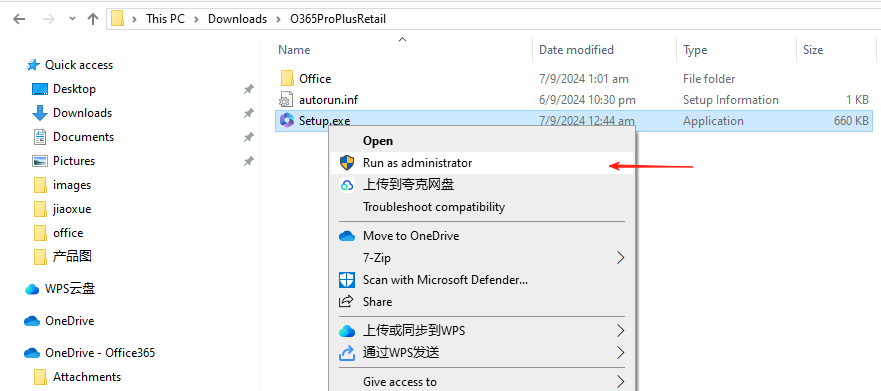
Right-click setup.exe → Run as administrator
Important:
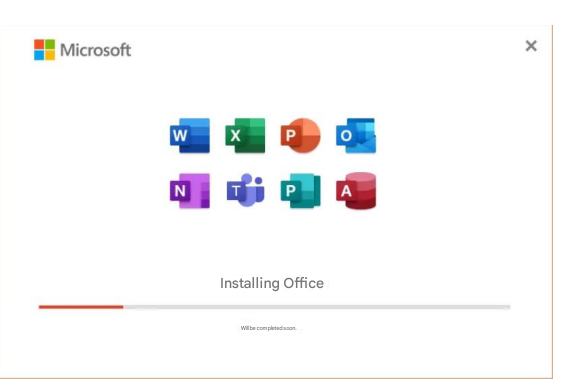
Please do not open any Office apps during installation.
Installation will take about 15–30 minutes.
Please wait patiently.
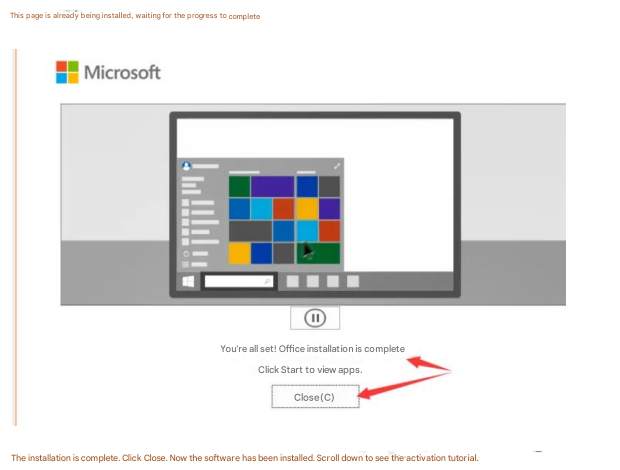
When you see Installation Completed, click Close.
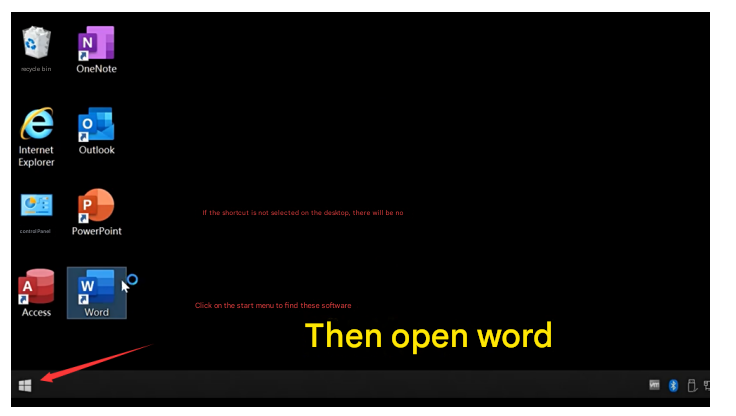
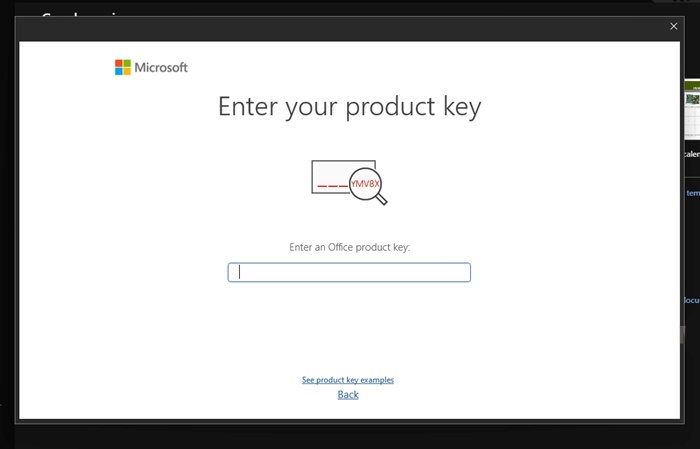
After entering the key, close and reopen the app to see the activation wizard
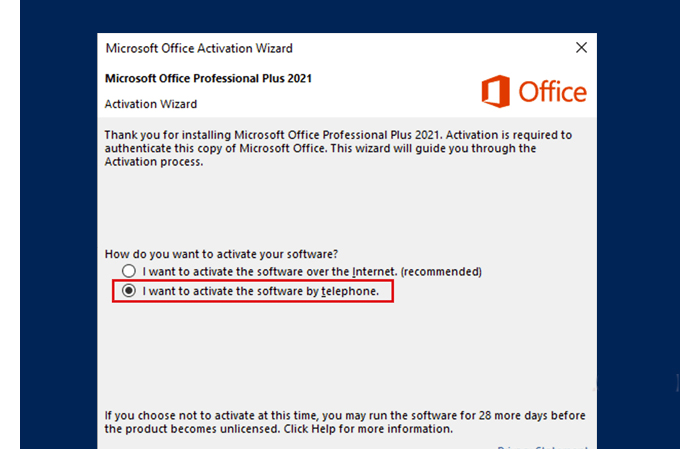
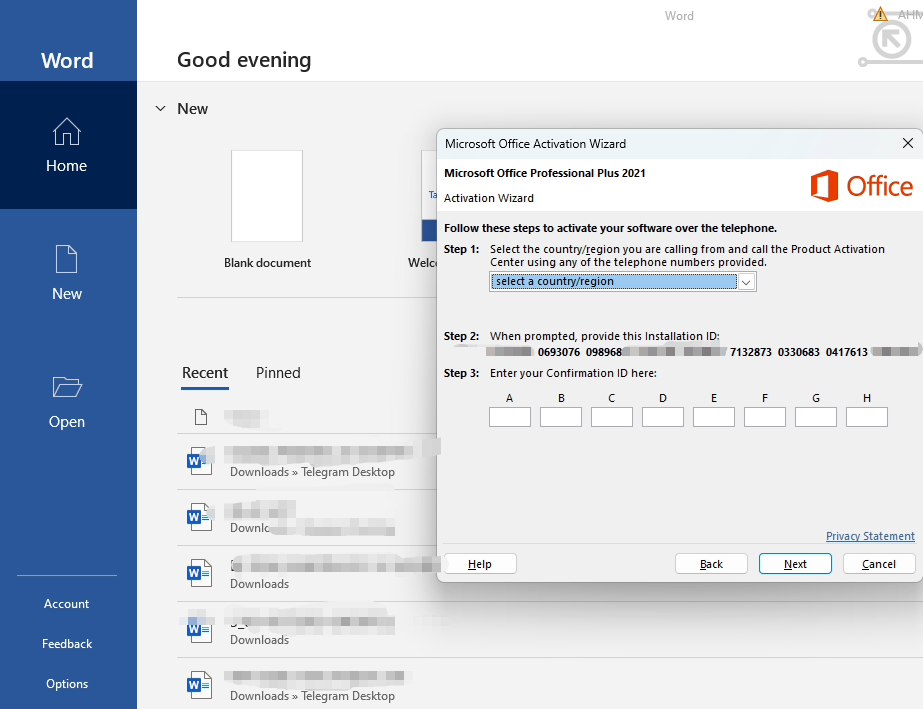
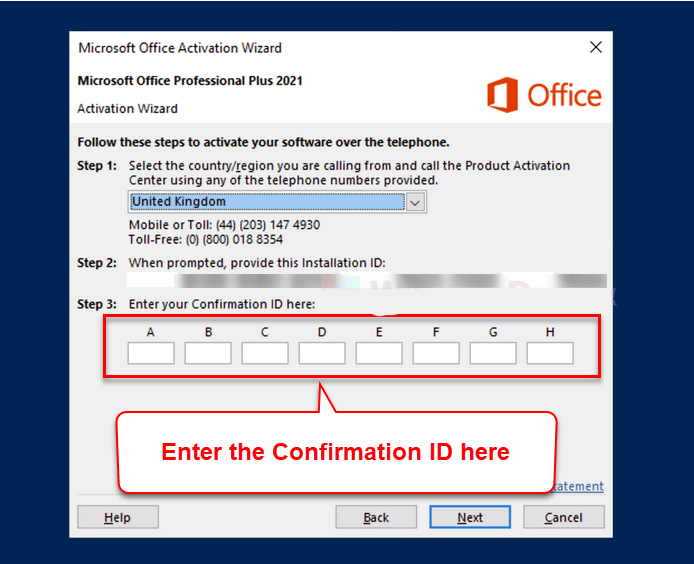
Activation completed successfully!