Microsoft 365
Windows Installation & Activation
Complete installation and activation guide for Microsoft 365 on Windows 10 / 11.


Click the button below to download the official image installer:
Download Microsoft 365 Official Image
Security Tip:
Please make sure you download from official or trusted sources only.
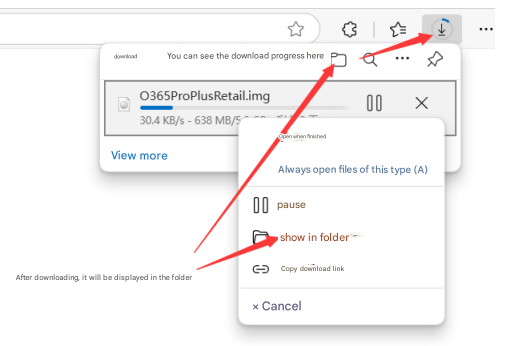
Wait for the download to complete,
then click Show in folder.
If the system does not automatically mount the file:
Tip:
Mount is recommended if available.
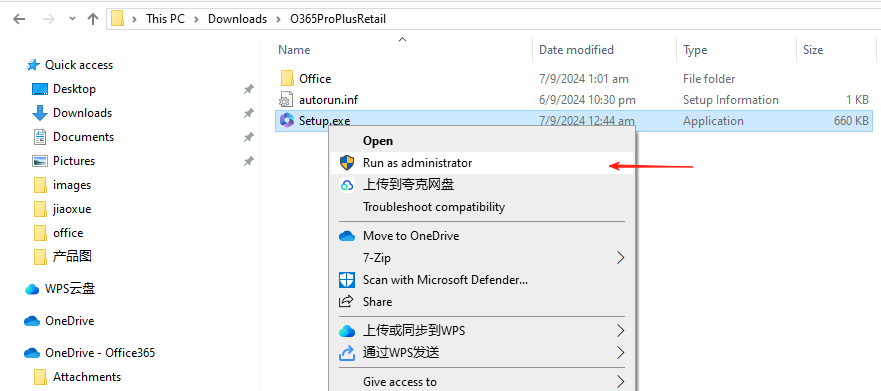
Open the extracted folder,
Run the installer as administrator.
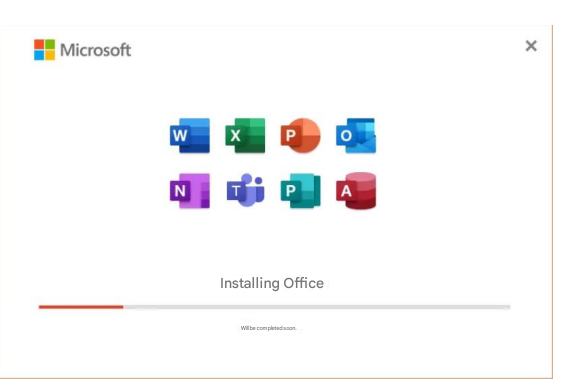
Note:
Installation may take 15–30 minutes.
Please keep internet connected.
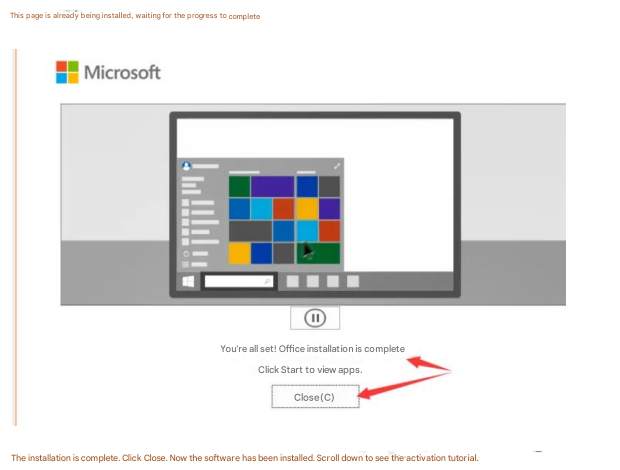
Click Close to finish installation.
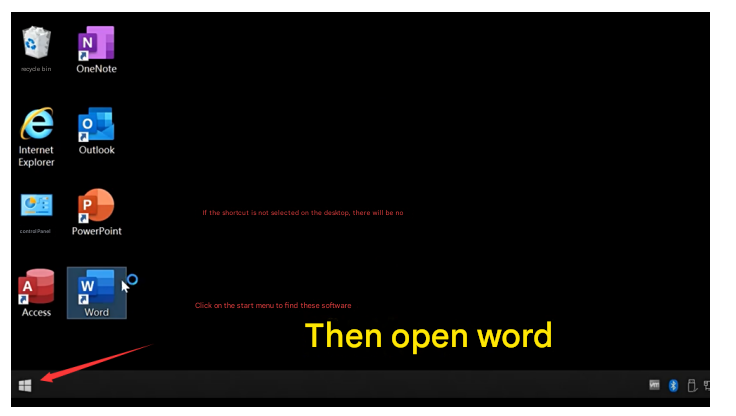
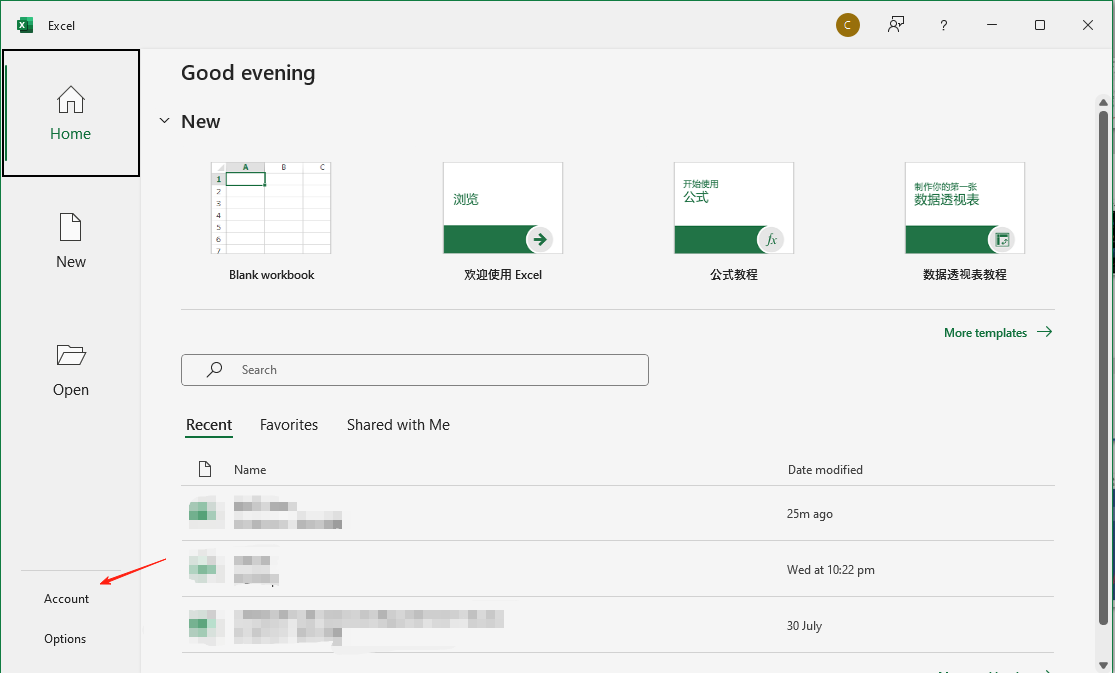
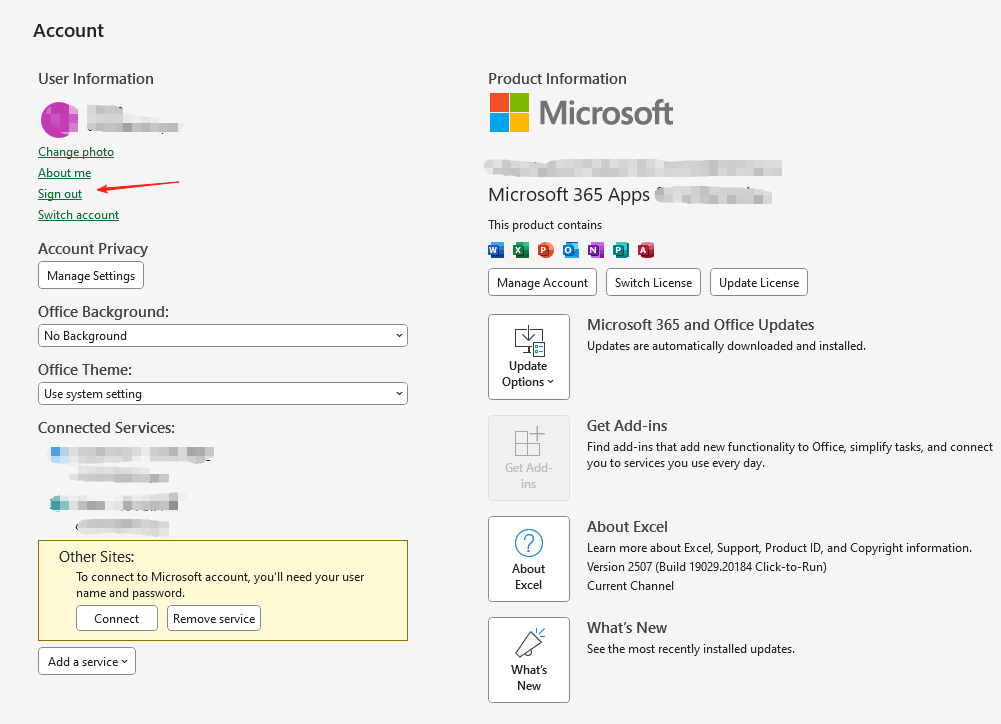
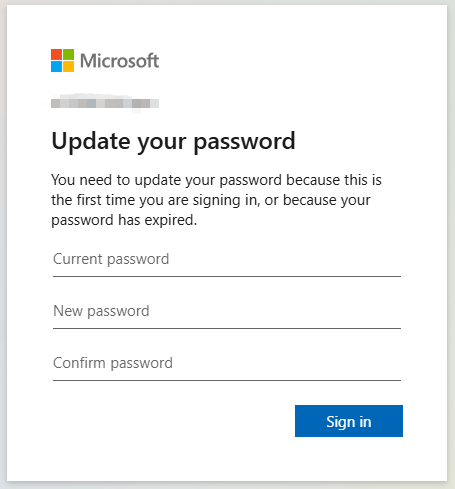
Password Requirements:
• At least 8 characters
• Uppercase + lowercase letters
• Numbers included
• Must not be the same as old password