Microsoft Project & Visio
Professional Plus 2016 / 2019 / 2021 / 2024
Install via Office Tool Plus and activate using Telephone Activation.
Supports all volume license versions.

Office Tool Plus is required to install Project / Visio volume versions.
Download Office Tool Plus
Requirements:
• Windows 10 / Windows 11
• Run as Administrator
• Internet connection required
[/ux_alert]
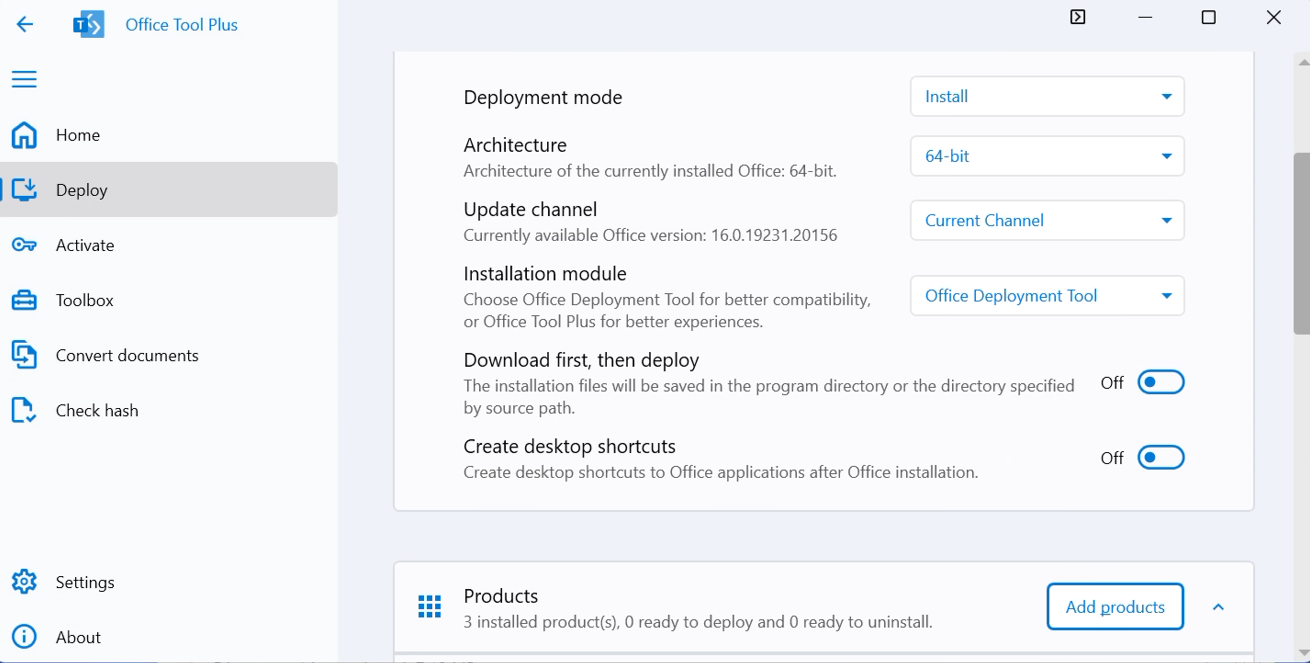 Open Deploy
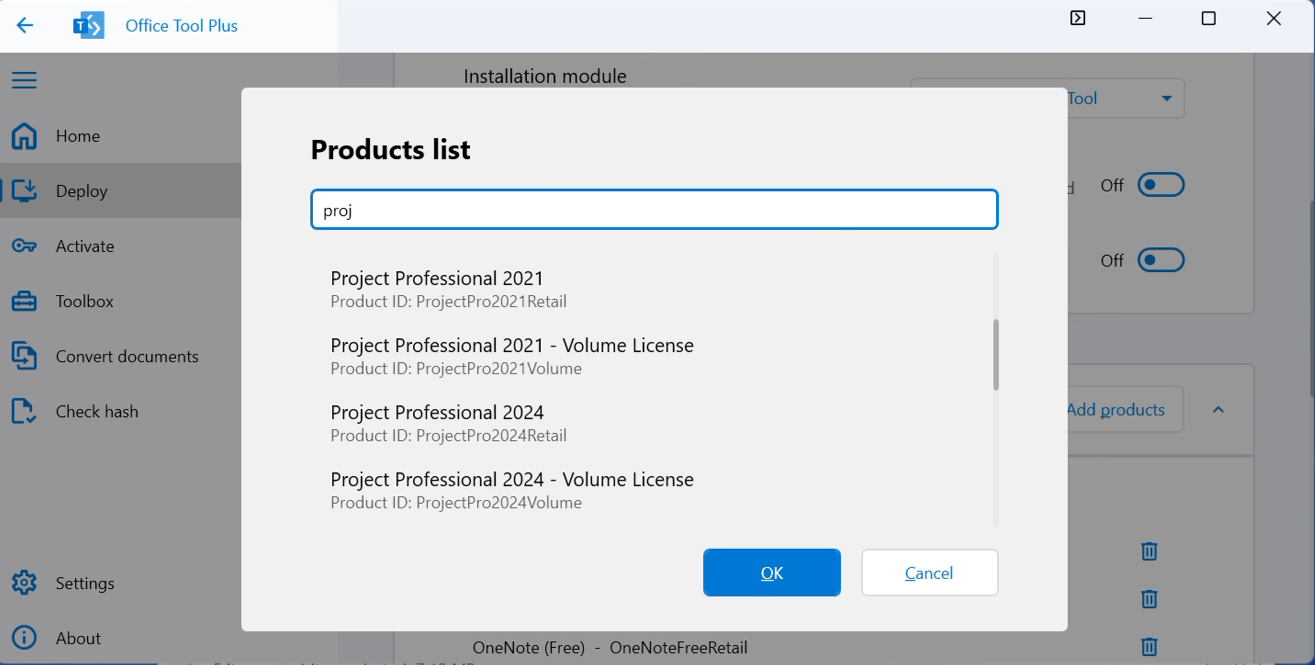 Select one of the following:
Important:
Make sure the architecture and channel match your existing Office installation.
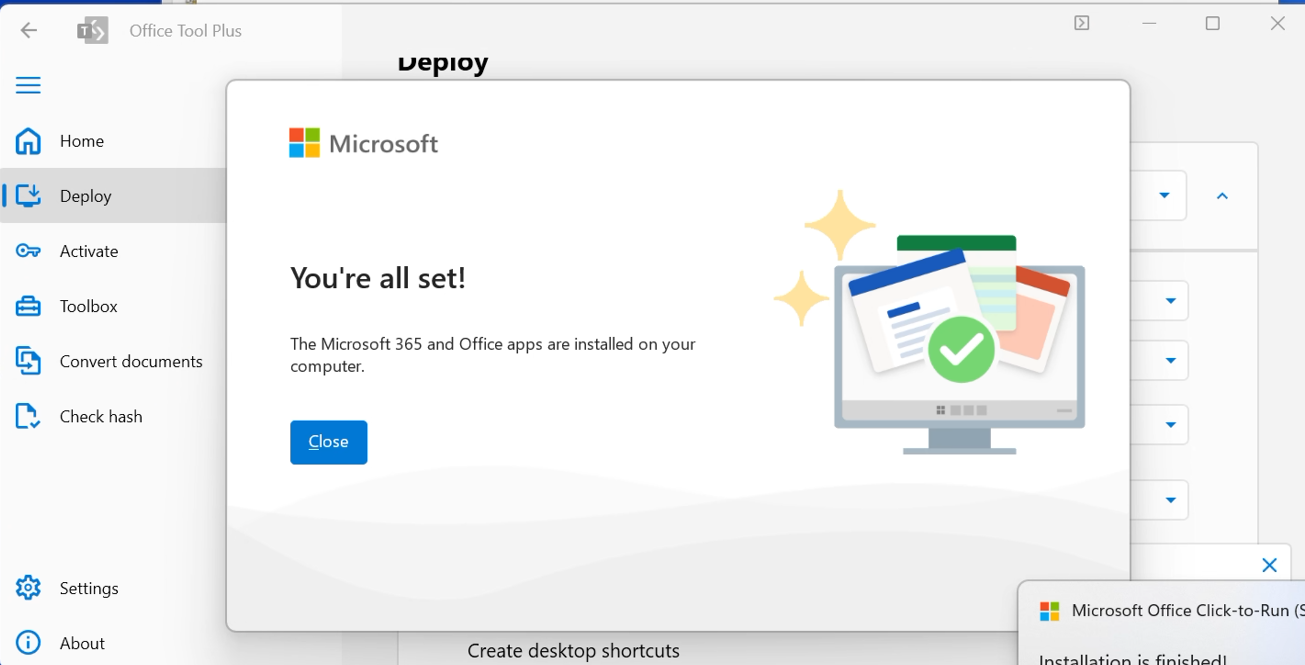
Click Start Deployment and wait for installation to complete
(usually 10–30 minutes).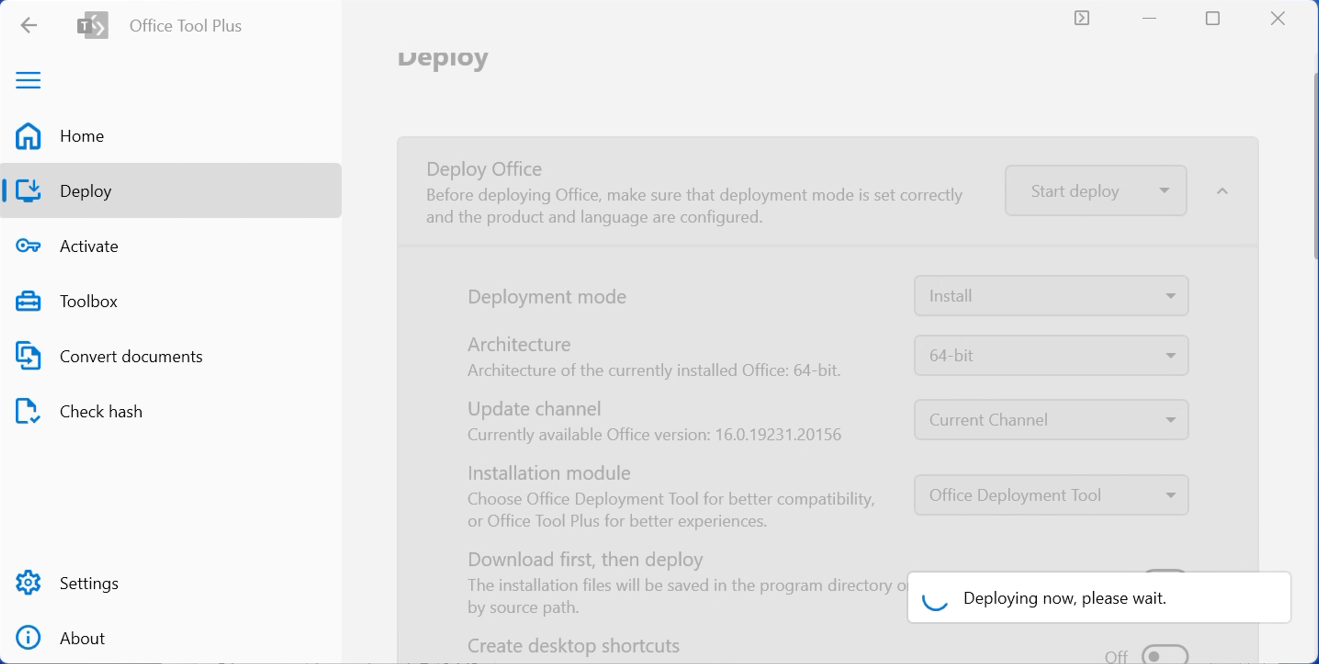
Go to File → Account
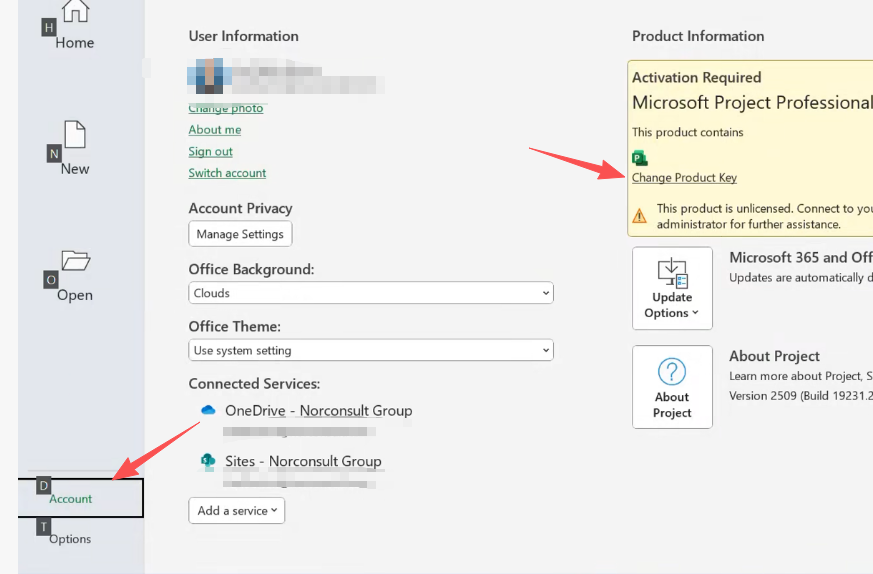
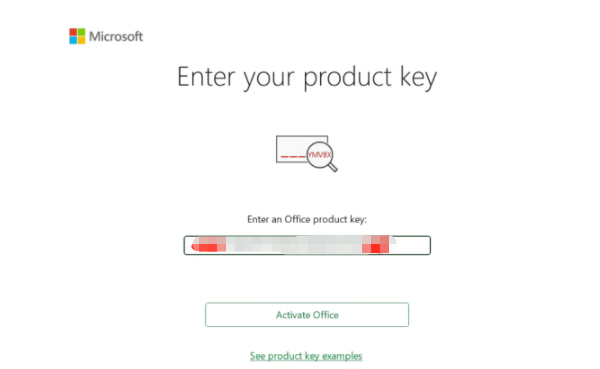
Click I have a product key or Change product key
Enter the key, then close and reopen the app.
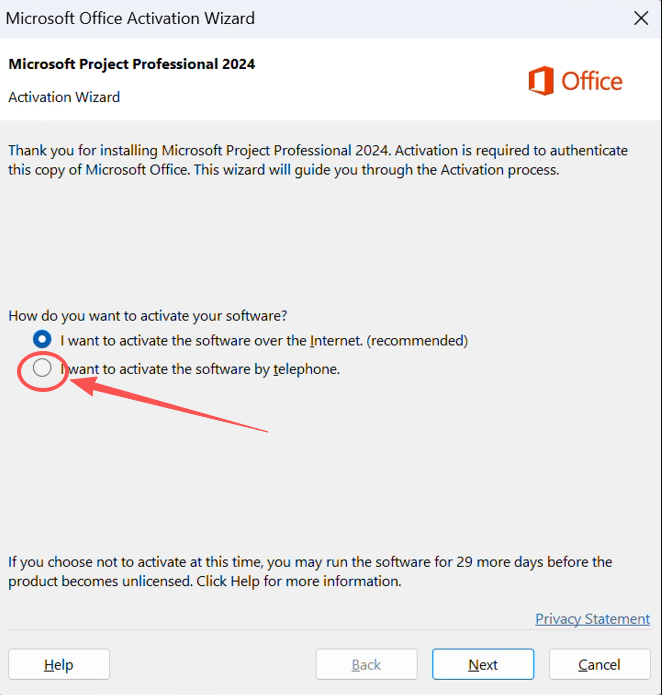
Select Telephone activation:
Enter the confirmation ID, and it will show activation successful: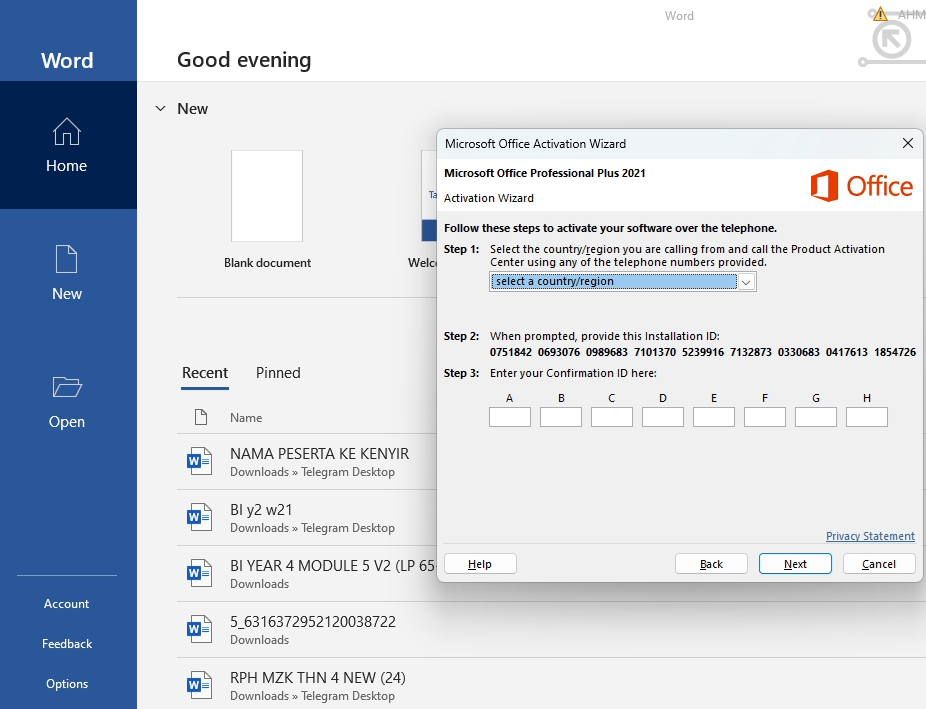
Statement:
If you encounter any error messages, please contact customer service immediately.