
Step 1: Download Installer
Download the SPSS installer for your version and operating system.
Right-click the installer and select Run as administrator (Windows).
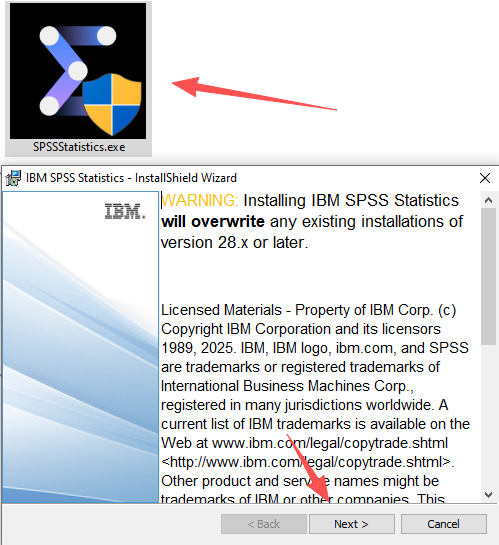
Step 2: Install SPSS
- Install to a folder with English-only characters
- Avoid special characters or Chinese characters in the path
- Follow the setup wizard until installation completes
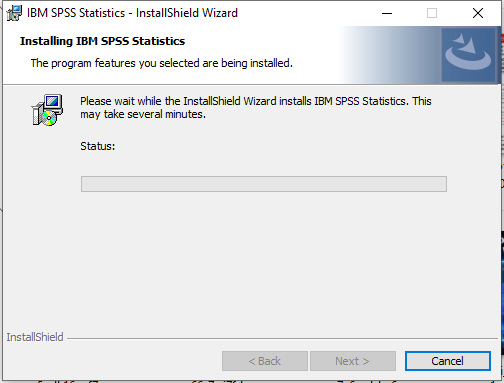
Tip:
Using the default installation path is recommended.
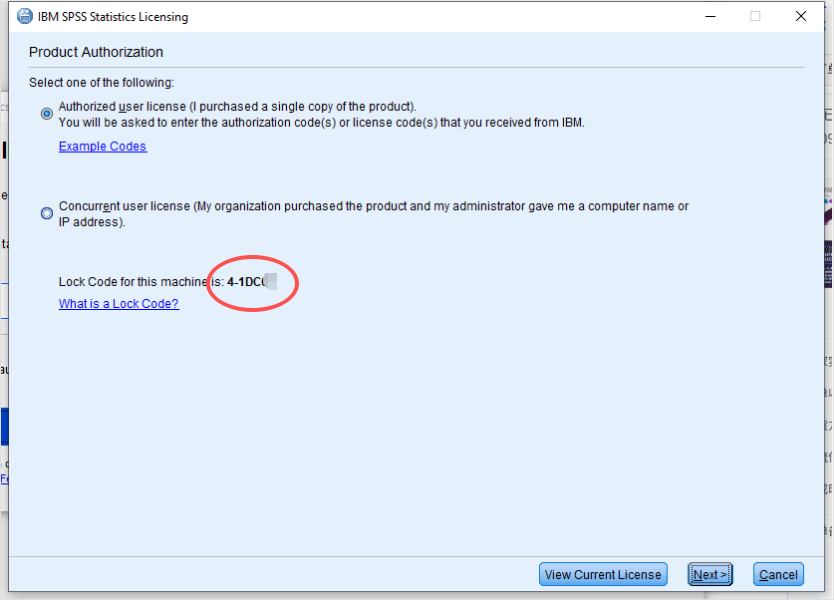
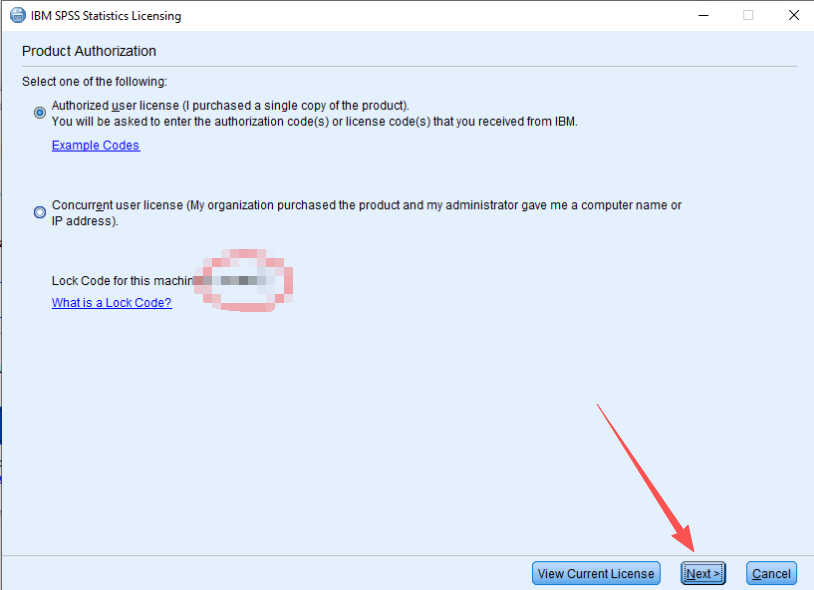
Step 3: Collect Lock Code
Open SPSS and launch the License Wizard.
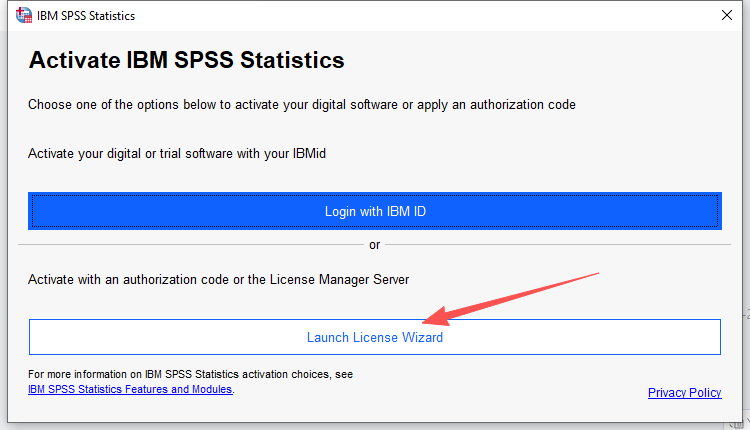
- Copy the Lock Code
- Send Lock Code to customer service
Step 4: Activate SPSS
In the License Wizard:
- Select Authorized User License
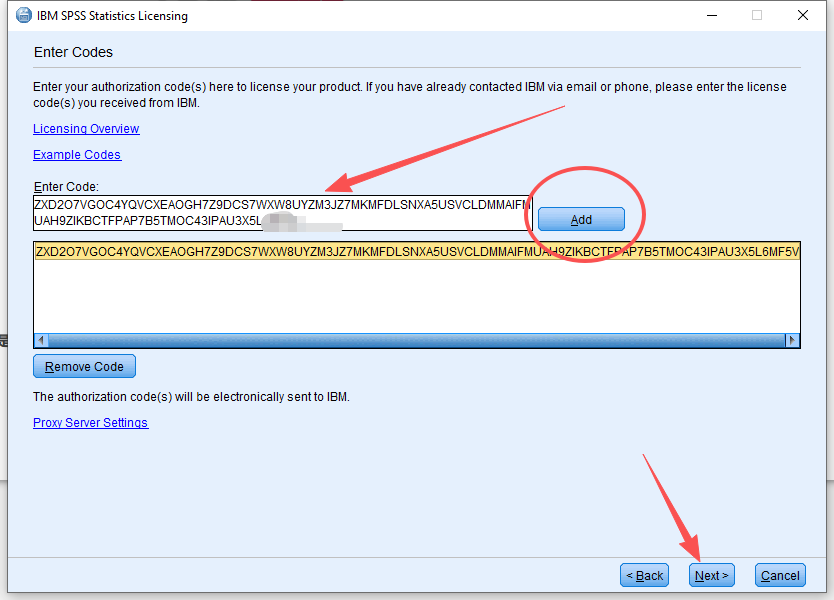
- Paste the License Code(From Customer Service)
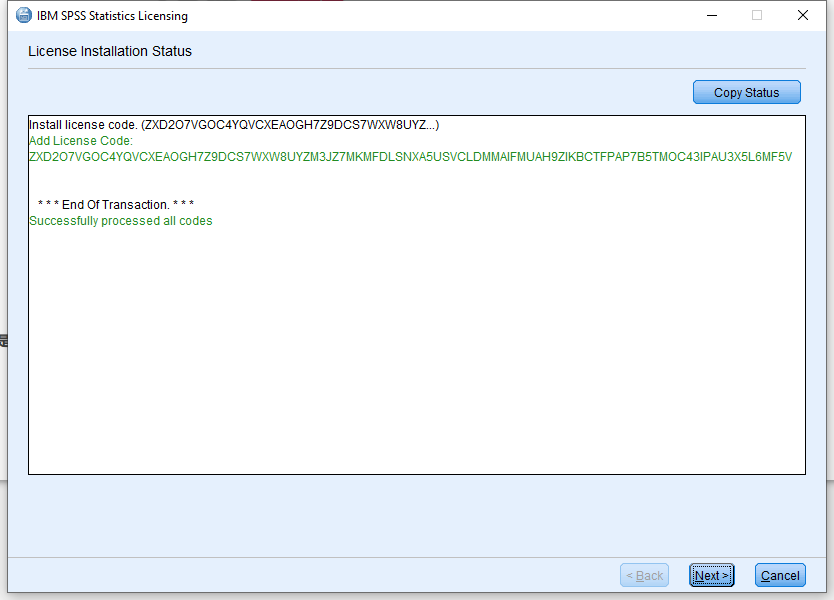
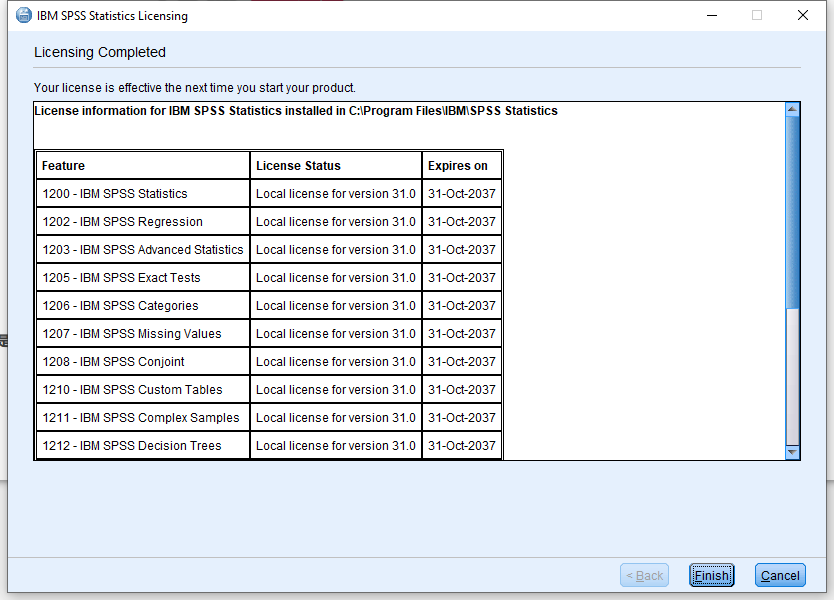
- Complete activation and restart SPSS
Troubleshooting
- Ensure Lock Code and License Code are entered exactly
- Reinstall SPSS if activation fails
- Check firewall or network restrictions
- Keep License Code for future system migration
Important:
Do not share your License Code publicly.