Autodesk Account
Login & Email Verification Guide
Step-by-step guide to log in to your Autodesk account
and confirm the registered email address.


Open one of the official Autodesk login pages:
manage.autodesk.com accounts.autodesk.com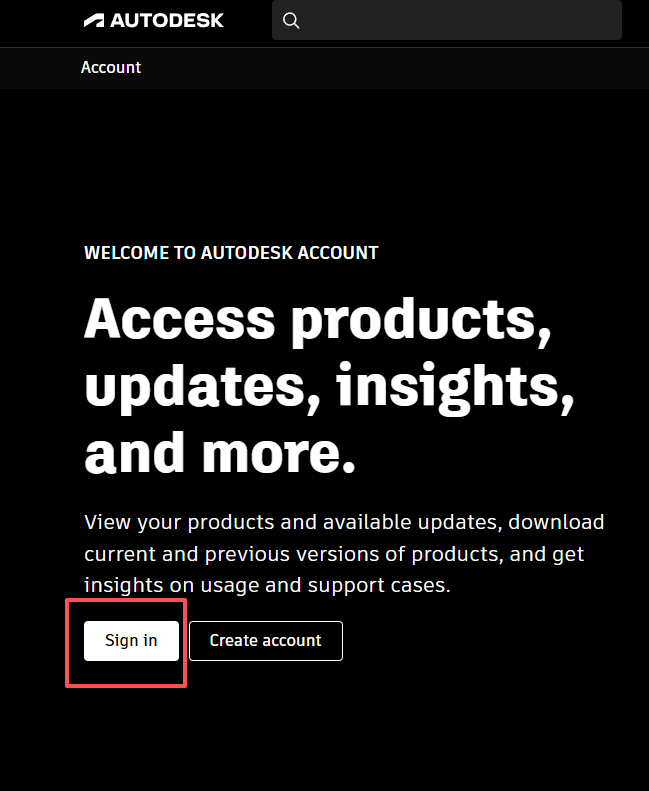
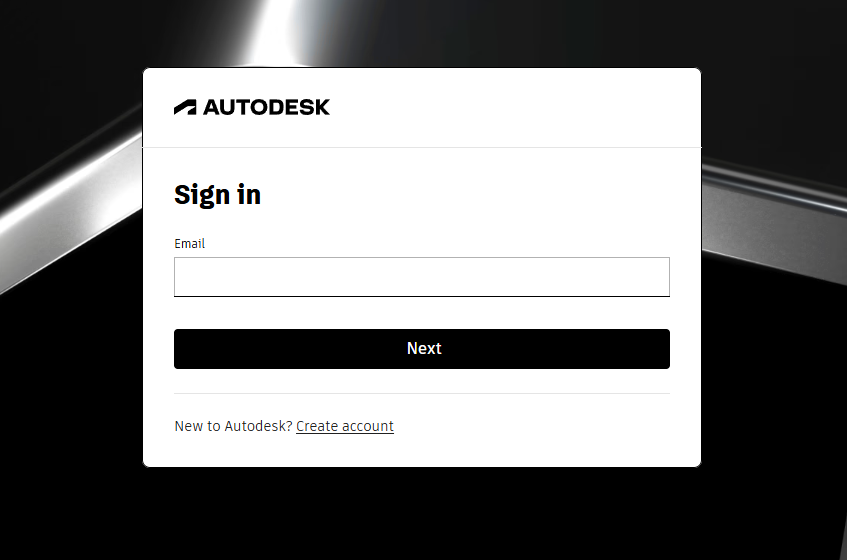
Enter your Autodesk ID (email) and password to sign in.
If 2-Step Verification is enabled, follow the on-screen instructions.
Tip:
Enterprise users may be redirected to a company SSO login page.
After signing in:
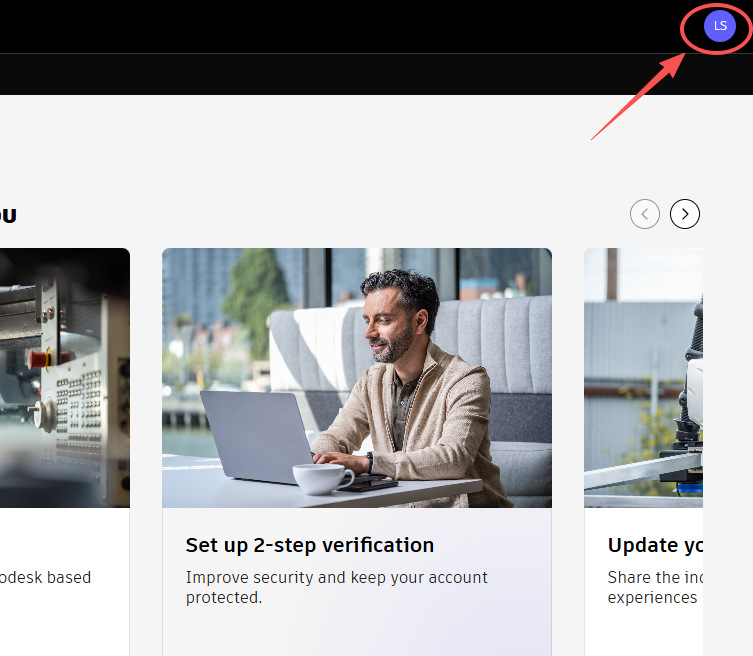
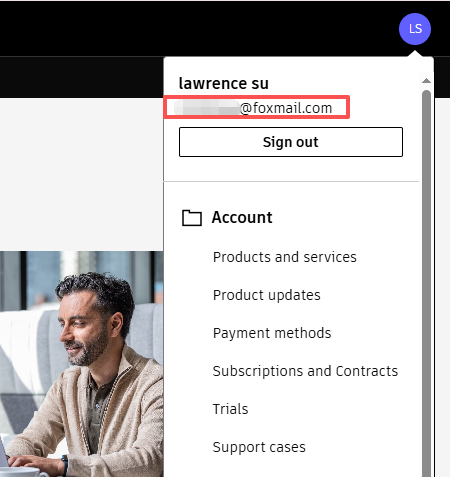
On the Profile page, locate the Email field.
This is the email address linked to your Autodesk license.
Tip:
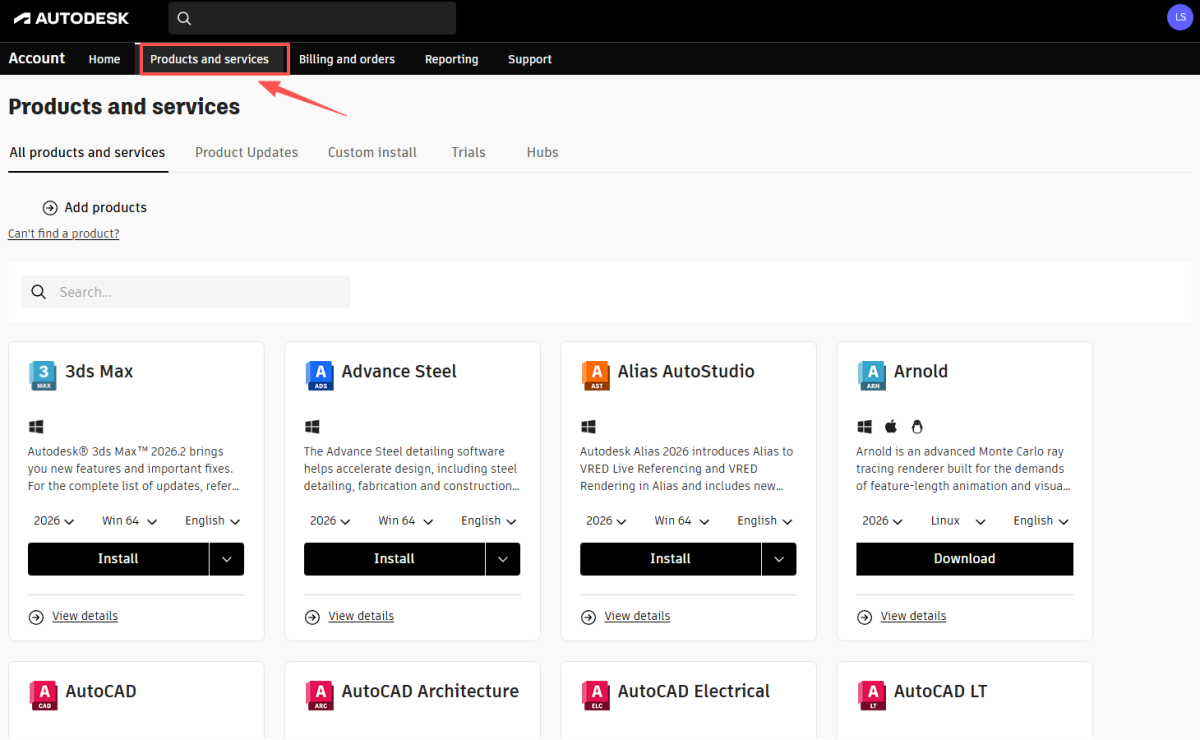
After successful activation, authorized products will appear under
Products and Services.
Important:
Never share your password or verification codes.
Always make sure the domain is autodesk.com.