Method 1: Boot from USB via Boot Menu

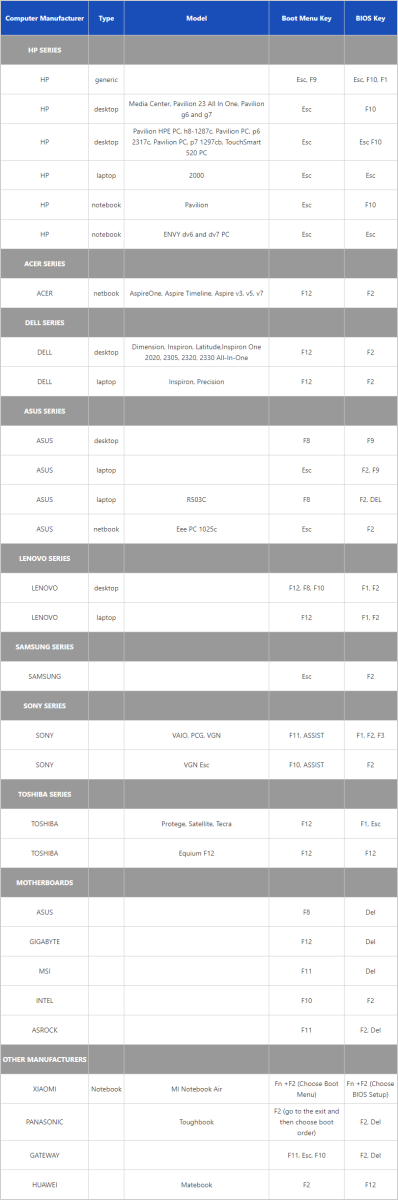
Enter Boot Menu

  1. Insert the bootable USB drive
  2. Restart your computer
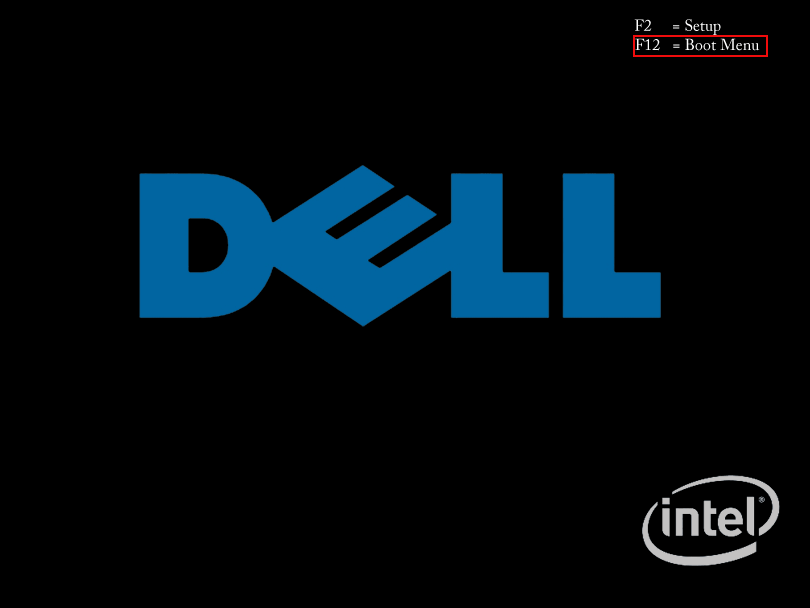
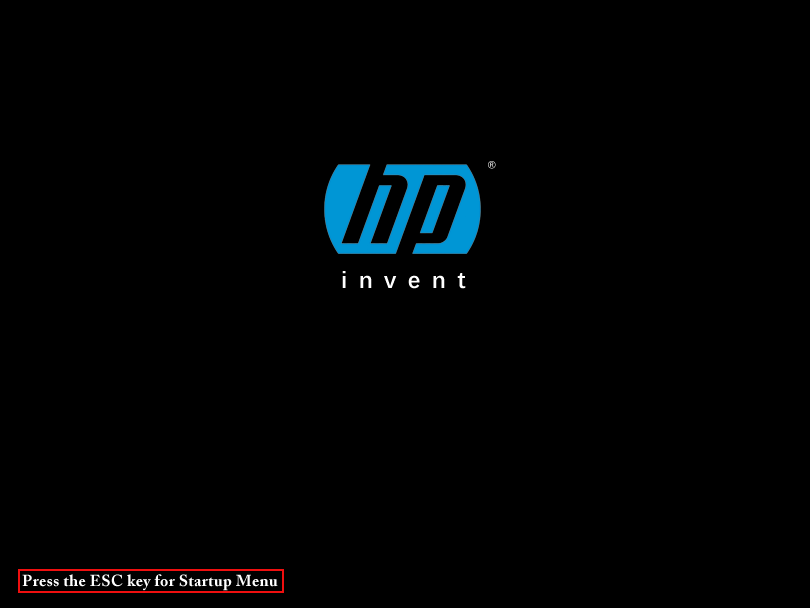
  3. Immediately press the Boot Option key repeatedly

Common keys: F12, Esc, F8


Select USB Device

  1. Use ↑ / ↓ keys to select your USB device
  2. Move it to the first boot option (if required)
  3. Press Enter or F10 to boot

Brand Examples

  • Dell: Press F12 → USB Storage Device
  • HP: Press EscF9 → USB drive

Method 2: Boot from USB via BIOS / UEFI

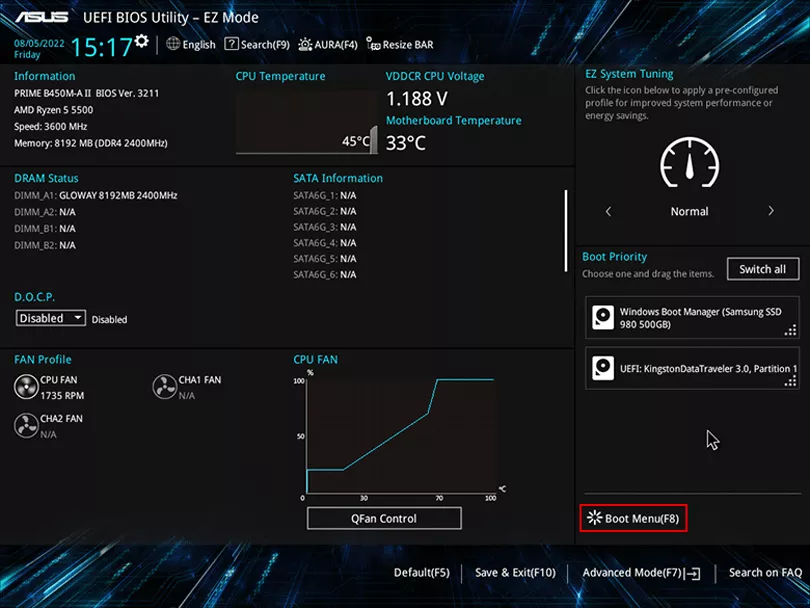
UEFI – EZ Mode

  1. Insert USB and restart
  2. Press BIOS key (Del, F2, F12)
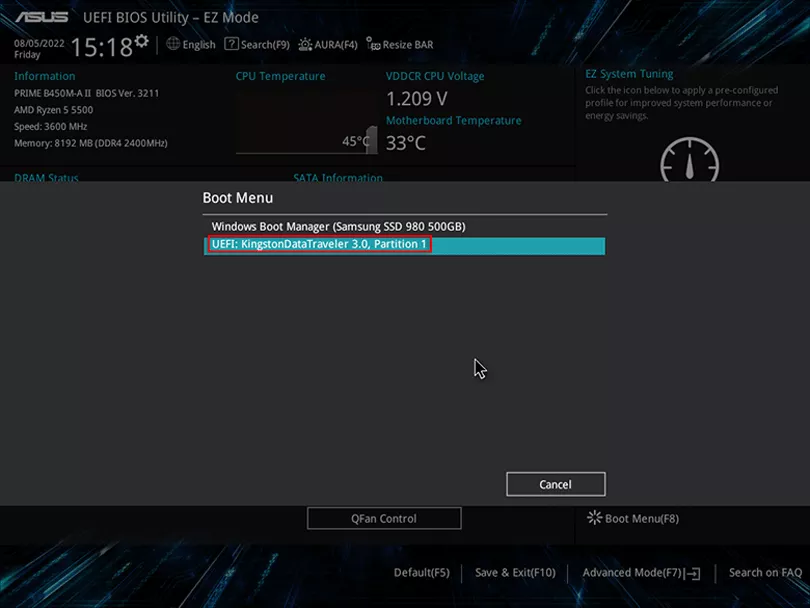
  3. In EZ Mode, press F8 (Boot Menu)
  4. Select USB flash drive

UEFI – Advanced Mode

  1. Press F7 to enter Advanced Mode
  2. Open the Boot tab
  3. Set USB drive as first boot option

Enter USB System

After booting from USB:

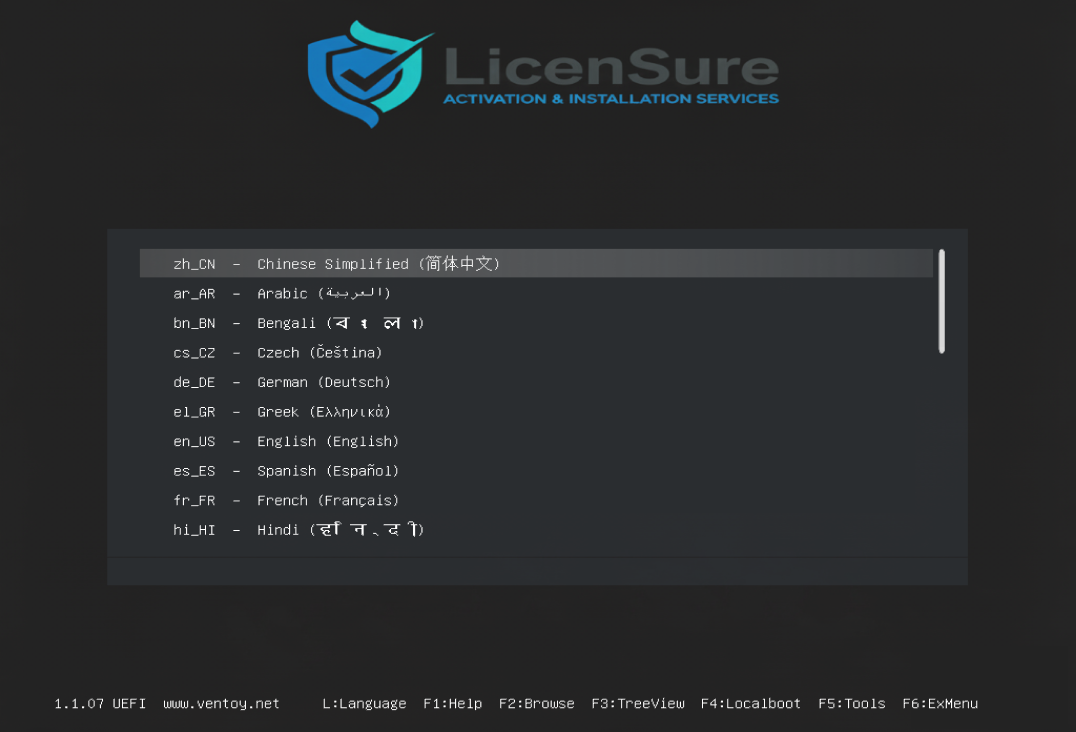
  • Press L to select language
  • Press Esc to go back
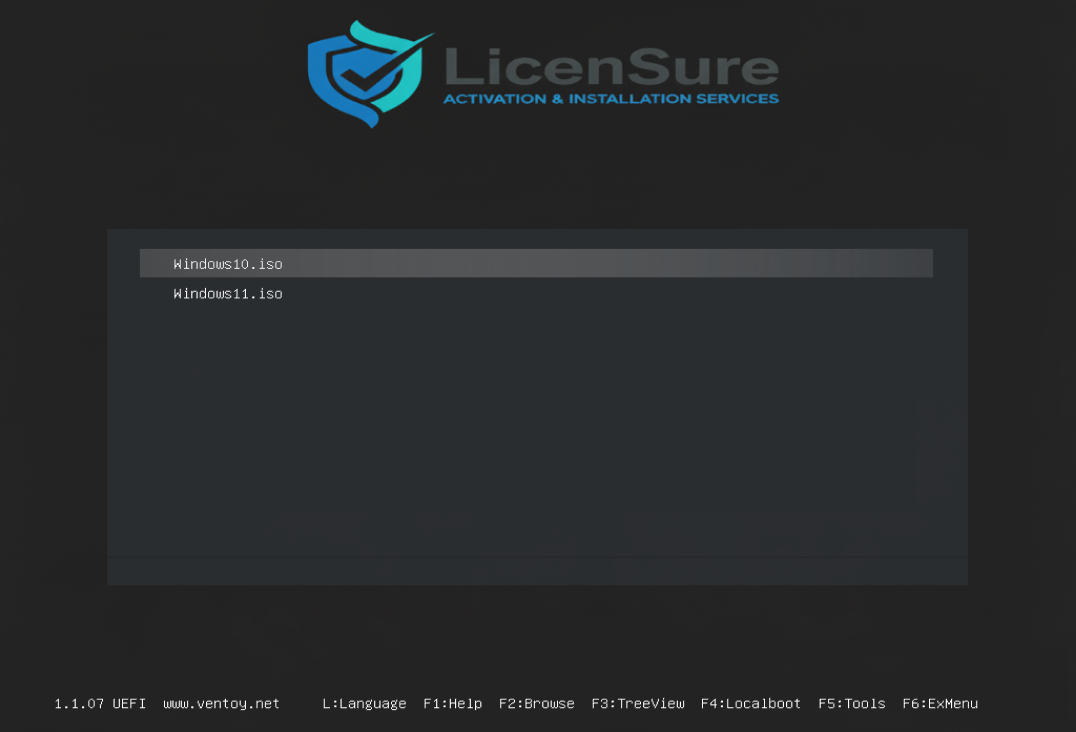
  • Select the Windows version to install
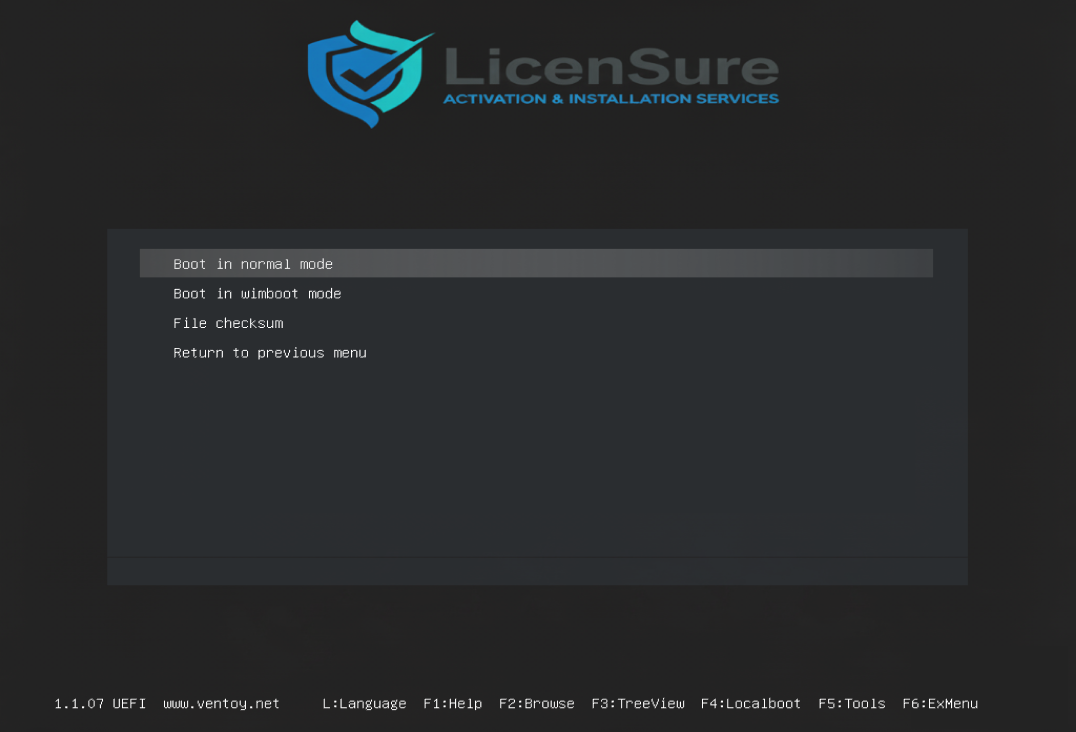
  • Press Enter to boot in normal mode

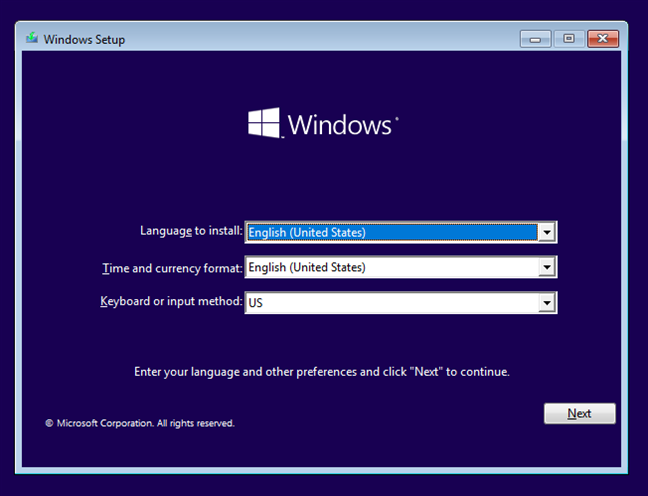
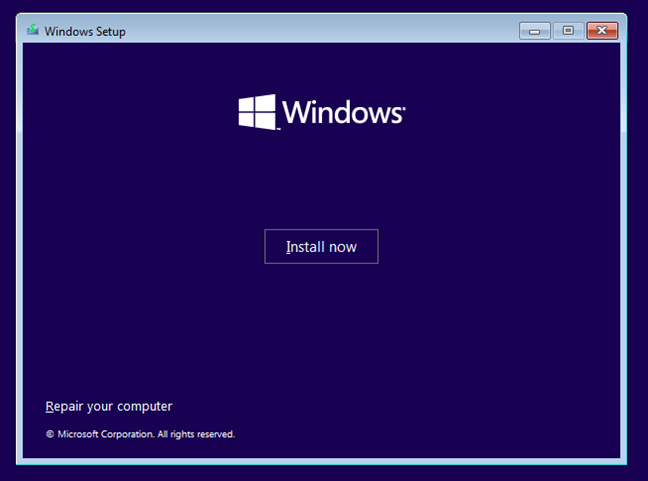
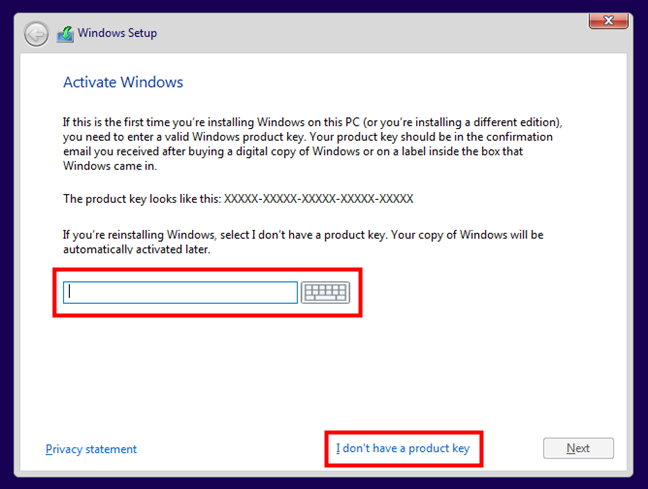
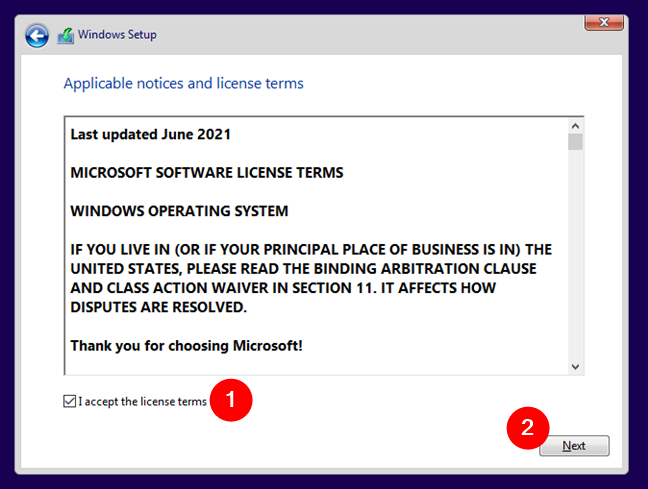
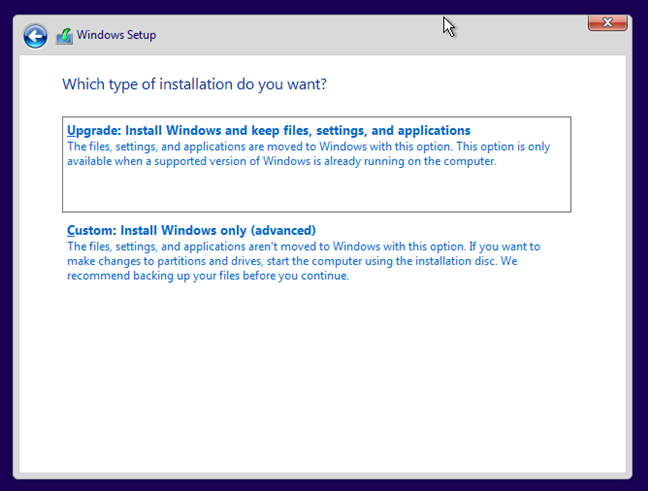
Step 1: Start Windows Setup

  1. Click Install Now
  2. Choose I don’t have a product key
  3. Select Windows 10 Pro (or your edition)

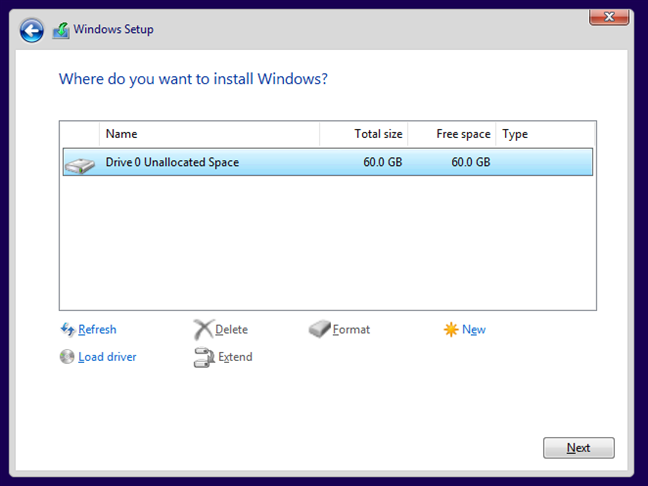
Step 2: Disk Partition & Installation

On the disk selection screen:

  • New PC: Select Unallocated Space → Next
  • Old system: Delete old partitions → Unallocated Space

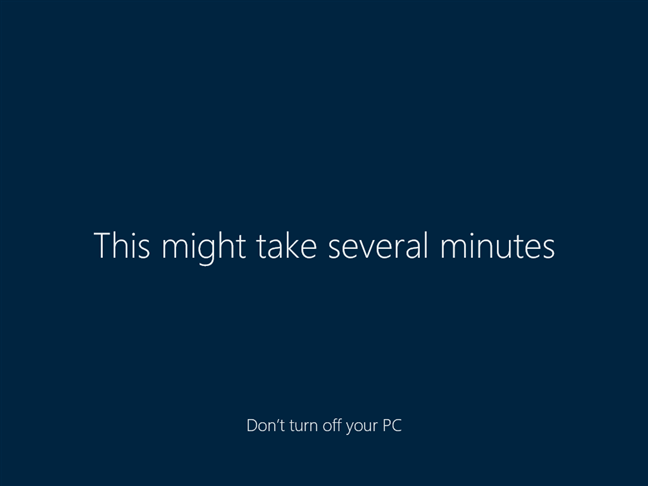
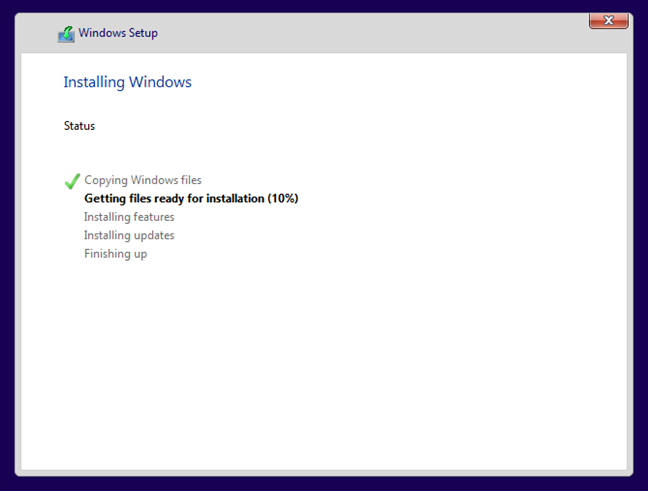
Windows will now copy files and restart automatically.
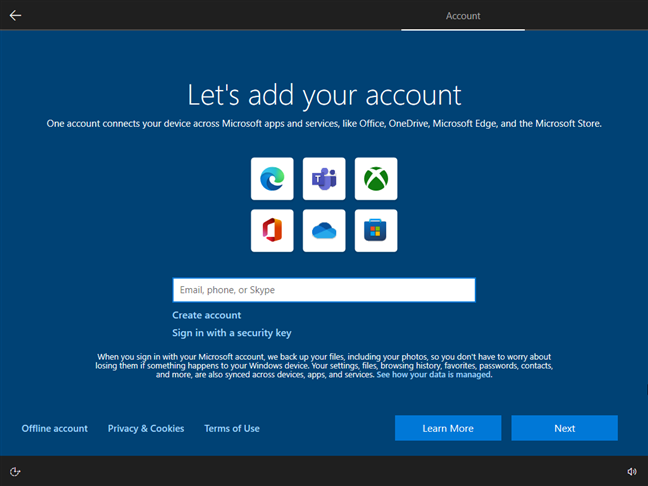
Step 3: Skip Microsoft Account

  1. Select Offline Account
  2. Choose Limited Experience
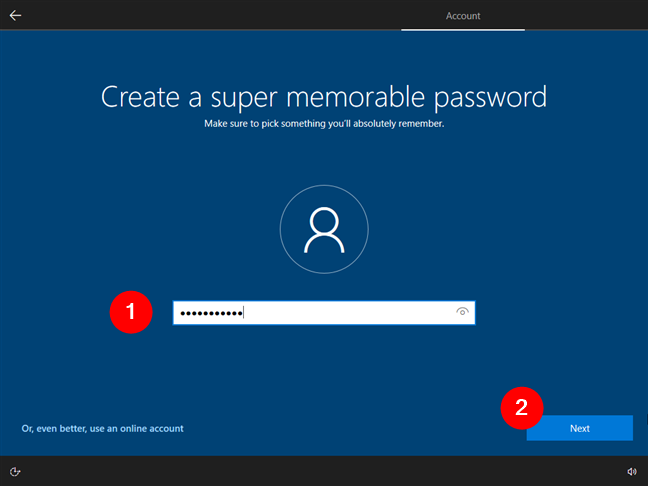
  3. Create a local username and password

Step 4: Final Setup

  • Choose privacy settings (you may turn all off)
  • Wait for setup to complete
  • Windows desktop will appear

Step 5: Activate Windows

With Product Key

Go to:

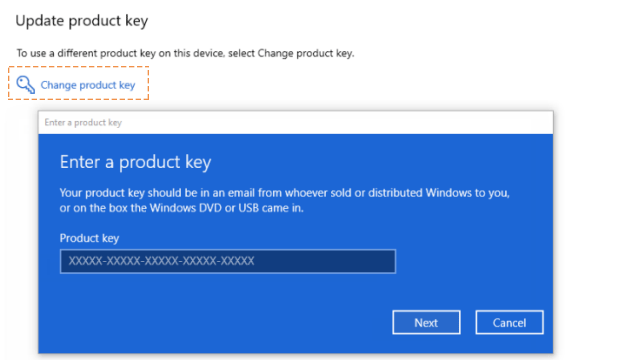
Settings → Update & Security → Activation → Change product key

No Product Key?

Please contact us via WhatsApp / Shopee / Lazada for assistance.
Need help installing or activating Windows?

Contact Support via WhatsApp