IBM SPSS Amos 32 product image
KEY711 Installation Tutorial

IBM SPSS Amos 30 / 31 / 32

Download IBM SPSS Amos for Windows, complete the installation, then use the License Authorization Wizard to activate your software.

Step 1: Download IBM SPSS Amos

Choose the version you need: v30, v31, or v32. The screenshots in this guide use Amos 31, but the installation flow is similar across these versions.

Download Amos v30
Download Amos v31
Download Amos v32

These are Windows installers. Keep the installed version matched to the authorization information supplied for your purchase.
Step 2: Run the Installer

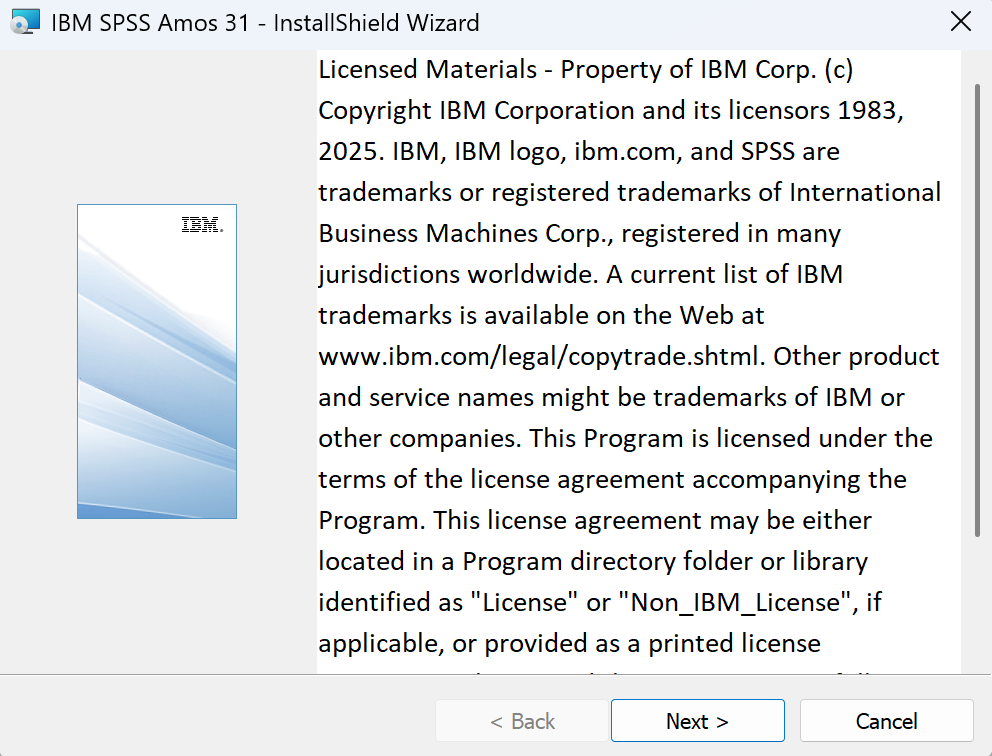
Open the downloaded .exe file and follow the InstallShield Wizard. Review the license information and continue with Next.

IBM SPSS Amos 31 installer license information

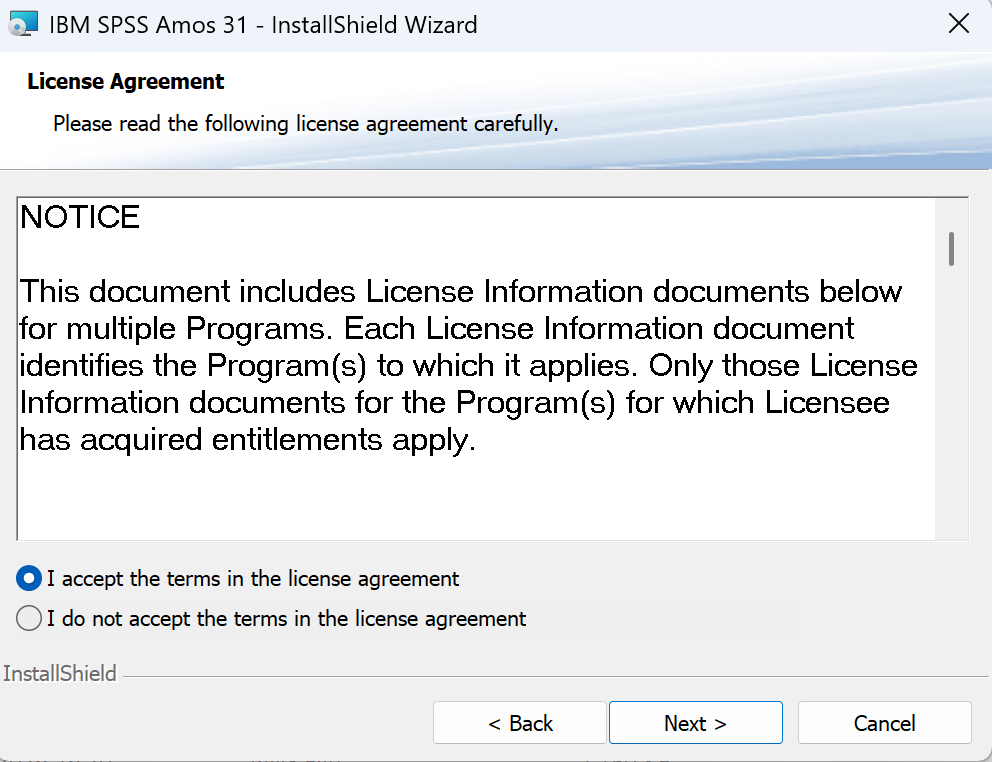
On the license agreement page, select I accept the terms in the license agreement, then click Next.

IBM SPSS Amos 31 license agreement acceptance screen

Step 3: Finish the Installation

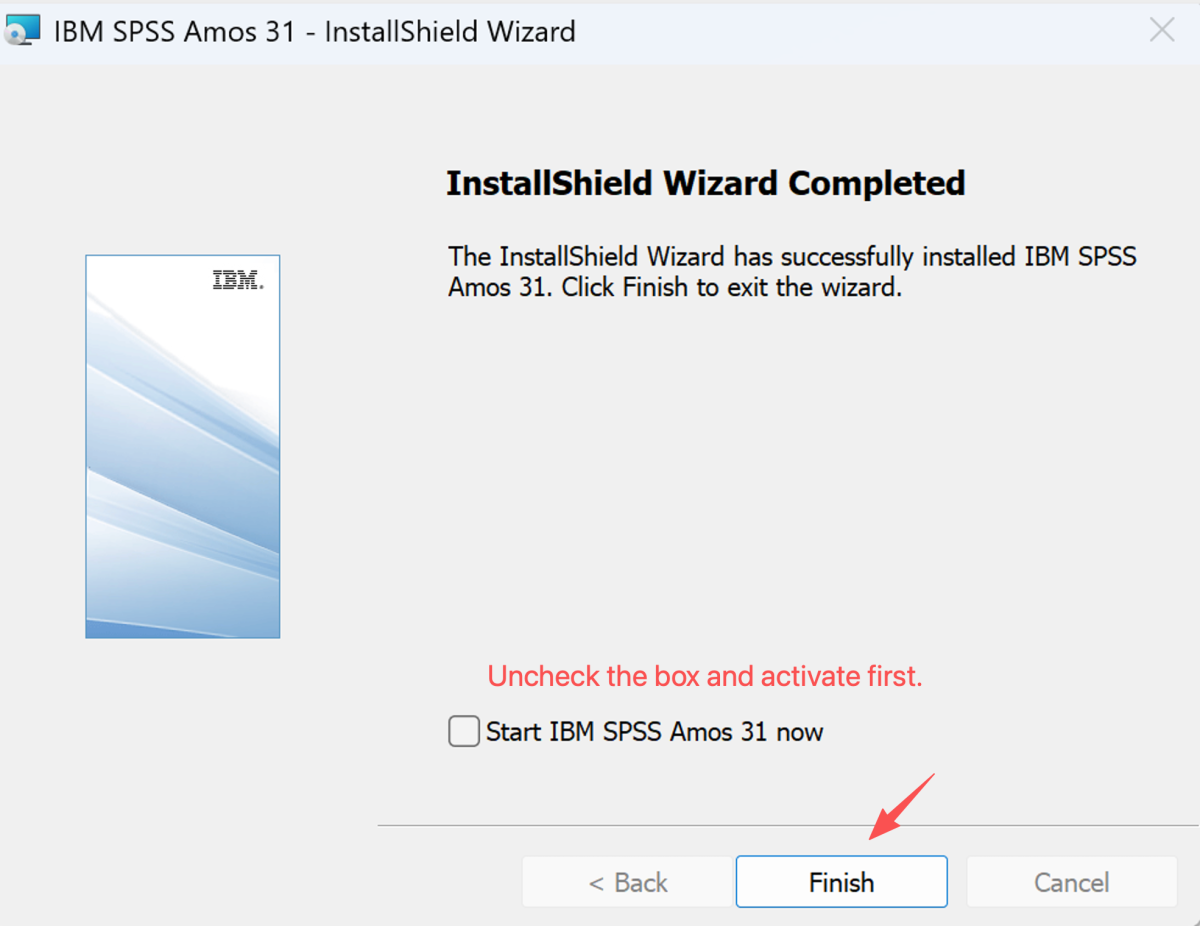
Wait for the installation to complete. When the completion screen appears, clear Start IBM SPSS Amos 31 now before clicking Finish. This lets you open the authorization wizard first.

IBM SPSS Amos 31 installation completed screen

Step 4: Open the License Authorization Wizard

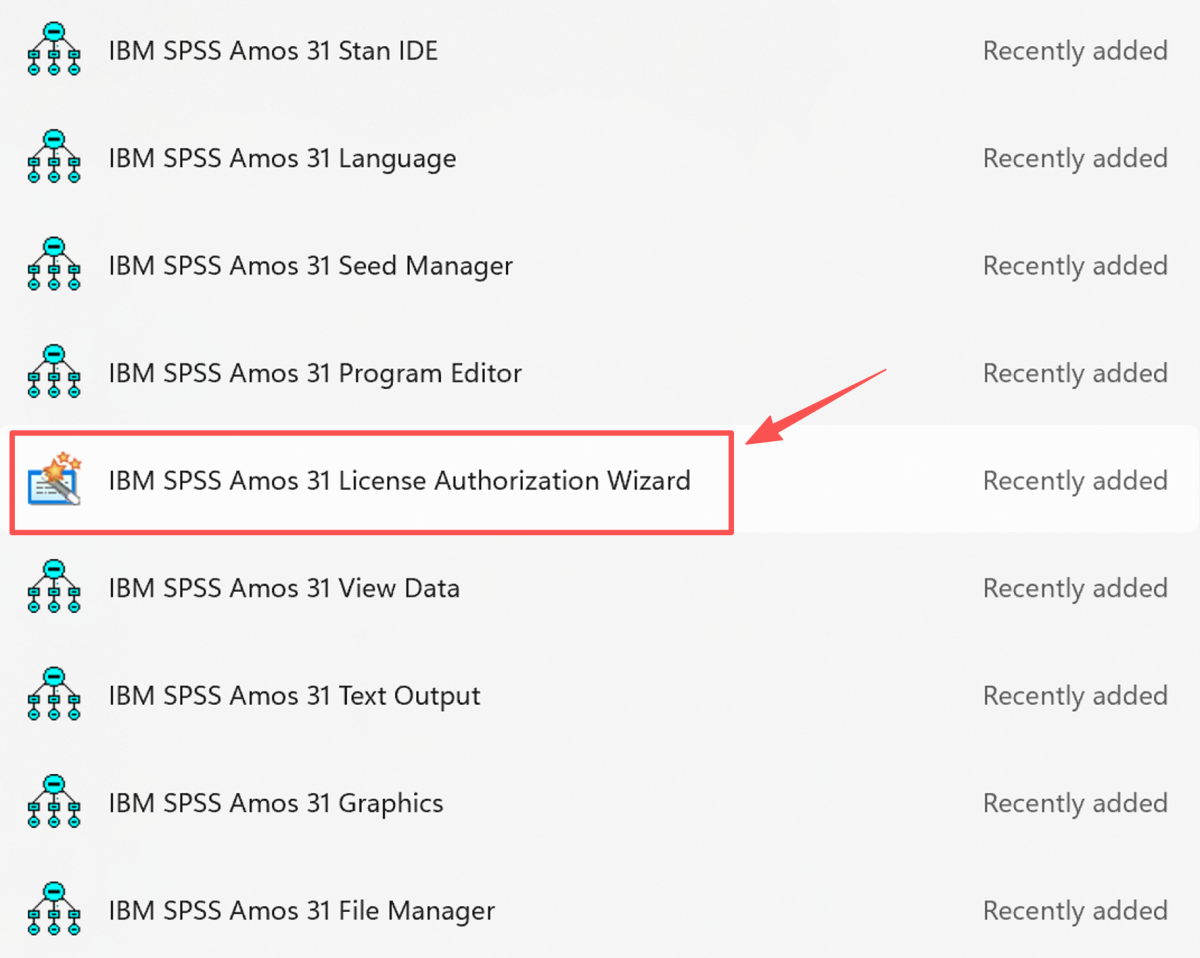
Important: Open the Windows Start menu and search for IBM SPSS Amos. Open the IBM SPSS Amos folder or search results, then find and launch IBM SPSS Amos 31 License Authorization Wizard.

If you installed v30 or v32, choose the corresponding version-named License Authorization Wizard shown for your installed version.

IBM SPSS Amos 31 License Authorization Wizard in Windows Start search

Step 5: Authorize IBM SPSS Amos

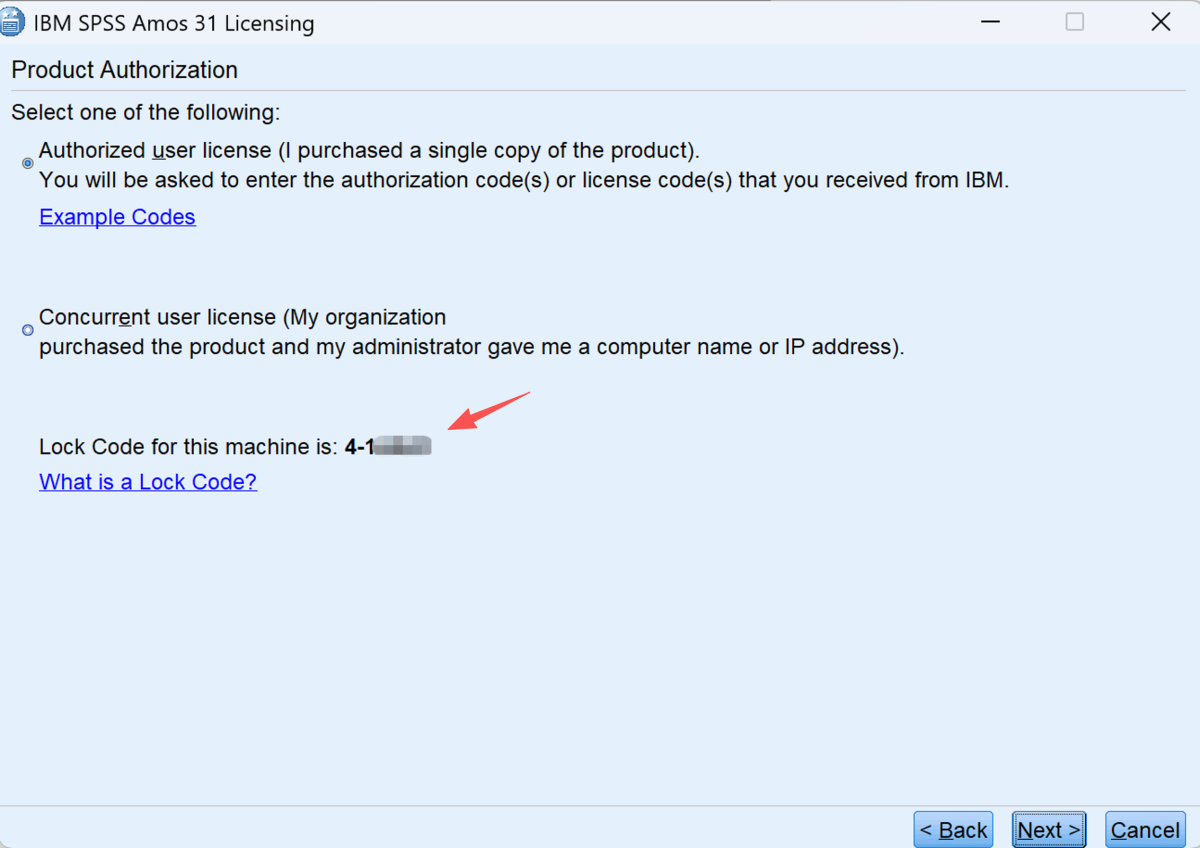
In the IBM SPSS Amos Licensing window, select Authorized user license. Enter the authorization code or license code supplied with your purchase, then continue with Next and complete the on-screen instructions.

IBM SPSS Amos 31 Product Authorization licensing window

After authorization is completed, open IBM SPSS Amos from the Start menu to confirm that it launches normally. If the wizard reports an error, send a screenshot of the message to support before making repeated changes.

Need help with IBM SPSS Amos activation?

Send us a clear screenshot of the authorization message and we will guide you through the next step.