Step 1: Download Office from App Store
Open the App Store on your Mac,
search for Office 365 and install:
- Microsoft Word
- Microsoft Excel
- Microsoft PowerPoint
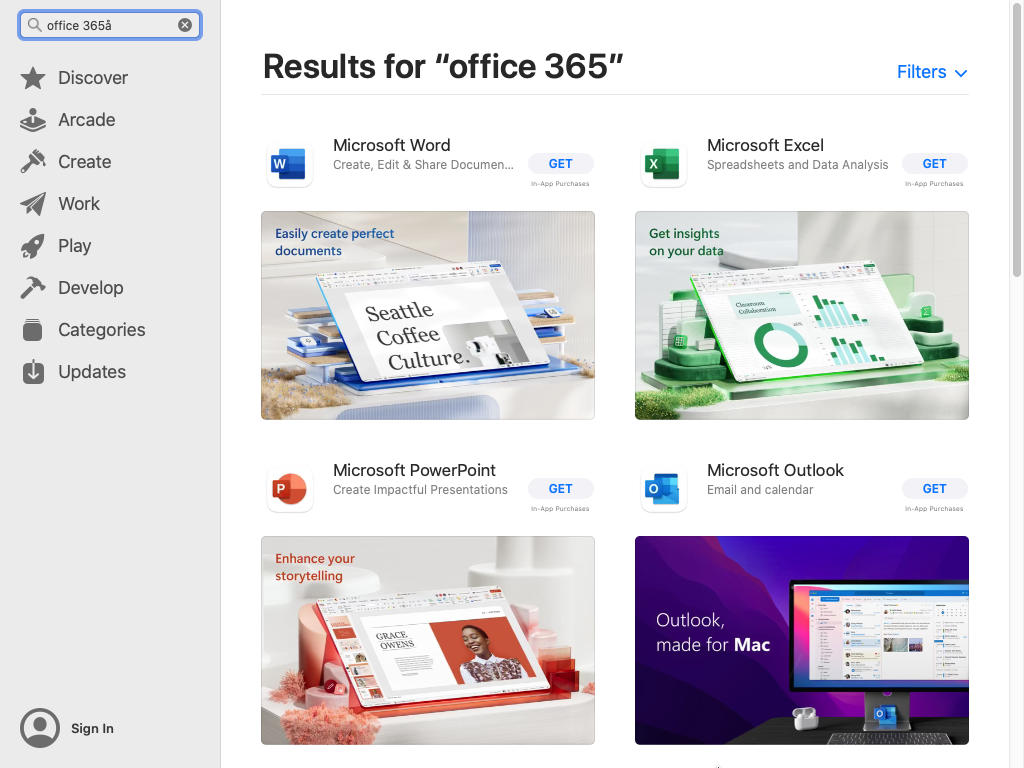


Open the App Store on your Mac,
search for Office 365 and install:
After installation, open Word (or any Office app).
Click Sign in.
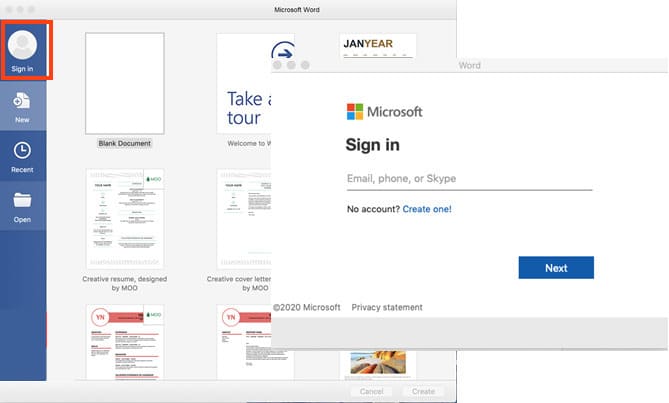
Sign in using your provided Microsoft 365 account.
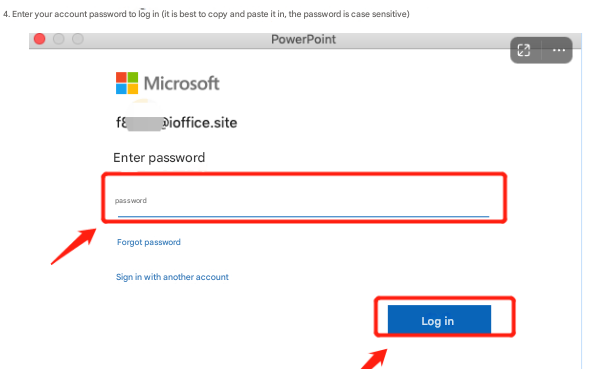
Tip:
We recommend copy & paste the password to avoid typing errors.
If this is your first sign-in, you will be prompted to change your password.
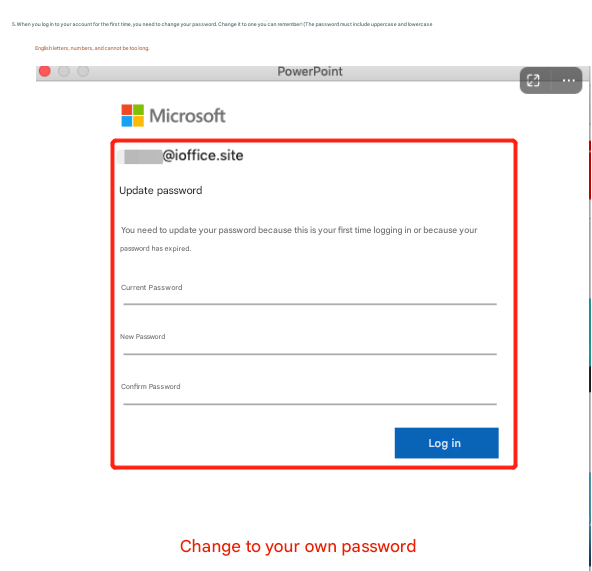
Password Requirements:
• At least 8 characters
• Uppercase & lowercase letters
• Numbers included
• Must not be the same as old password
Click the app name at the top-left (e.g. Word) → About Word.
It should display:
Product Activated + your account email.
If activation does not show correctly: